
The Main Window (.Net 8 Version 1.1)
In a CORE HL7 Script Engine you create Script Engine Profiles which will host and run your CORE HL7 C# Scripts.
Before you can create your Script Engine Profile you must have first created the CORE HL7 C# Script you want the profile to run AND exported that script to a CheckPoint file.
To create a new Script Engine Profile click the  button on the toolbar OR select Create New Profile from the main File menu. To EDIT a profile you can double click the Profile Name in the profiles list OR click the
  button on the Toolbar in the Properties tab. This will bring up the Edit Script Engine Profile window.
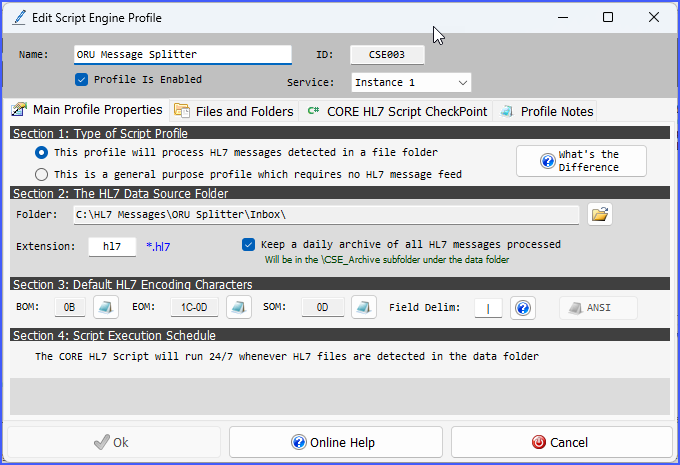
Script Engine Profile Main Properties
At the top of the Edit window you set the NAME of your Script Engine Profile. Every Profile must have a unique name. You also enable or disable your profile by checking the Profile Is Enabled checkbox and tell your Script Engine Software how your profile should be run by selecting the Service type. Your options here are either Instance 1-3, Private Service, or Unassigned, (see Running Your Script Engine or Private Services for more information about how this works). The last property you see in the top section is the ID field which is read-only and will show the Profile Short ID assigned by your software.
In the body of the Edit window you will find the 4 main tabs in which you configure your Script Engine Profile.
 Main Profile Properties (Type 1)
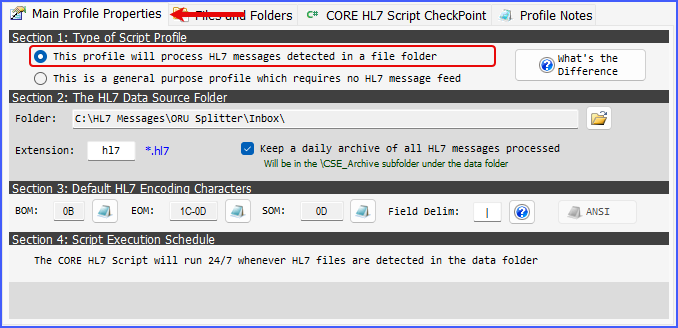
Profile Main Properties (Type 1)
The first thing you need to decide in your profile is which type of CORE HL7 Script are you running and check the appropriate box in Section 1.
A Type 1 profile will require you to enter the HL7 Data Source Folder in Section 2 as well as a File Extension. This is the folder where some OTHER process (like a CORE HL7 Listener, Postmaster, or your own software) will deposit HL7 data files which this profile will process. You can also indicate whether you would like the software to keep a daily archive of HL7 messages processed by checking the Keep a daily archive box. For a Type 1 profile the Logs Folder, Errors Folder and Archive Folder (if you indicate that you want a daily archive) are all set automatically as sub-folders underneath the HL7 Data Folder (see Files and Folders).
Section 3 contains 4 fields for the Default HL7 Encoding Characters which our HL7 parser needs to know to parse HL7 messages. 3 of these fields are displayed in HEX (BOM, EOM, and SOM) while the Field Delimiter (ANSI default is | ) you can enter by hand. It is very unusual for systems to deviate from the HL7 standard values and most HL7 professionals can go their entire career and NEVER have to change these values.
Section 4 is N/A for Type 1 profiles. For these types of profiles, when running, your CORE HL7 C# Script is executed 24/7 whenever HL7 data files are detected in the HL7 Data Source Folder.


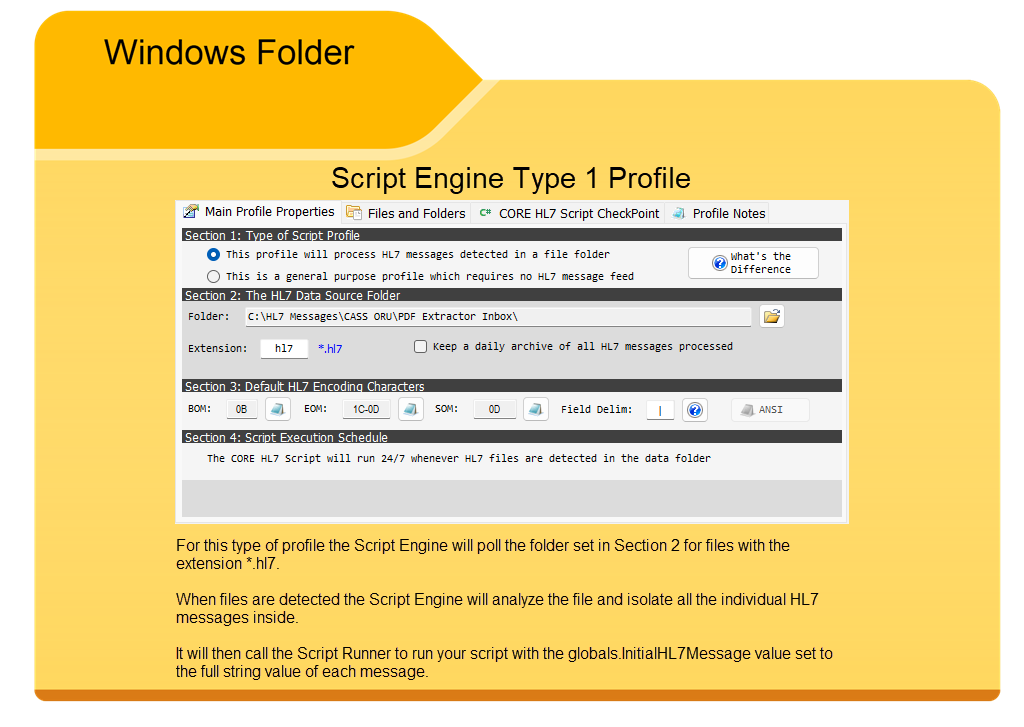
Main Profile Properties (Type 2)
With a Type 2 profile Section 2 is hidden and Section 4 is expanded with some additional properties available only to Type 2 profiles, Section 3 remains the same with the Default HL7 Encoding Characters.
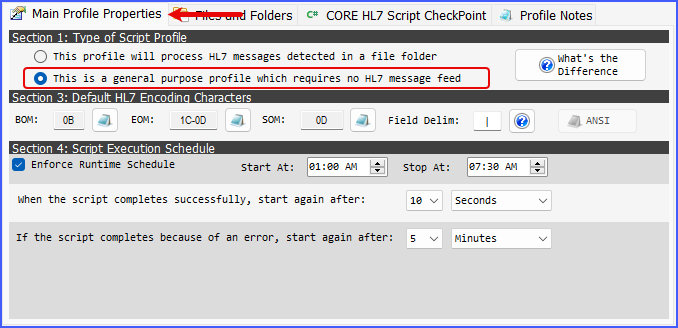
Profile Main Properties (Type 2)
Section 4: Script Execution Schedule
With Type 2 profiles you have the option in section 4 to enable the Office Hours object (see Script Reference) by checking the Enforce Runtime Schedule box and then setting the hours during which you want your script to run. This value can then be read at runtime in your C# scripts using globals.OpenHours and take the appropriate action.
Then you also set the restart parameters. Remember that the intention is that when in a production environment, your script will be running in a MS Windows Service. It is the Script Engine software's job to make that your script STAYS RUNNING. Here you set 2 different interval settings.
See Also: Script Reference Help (COREHL7Script object)

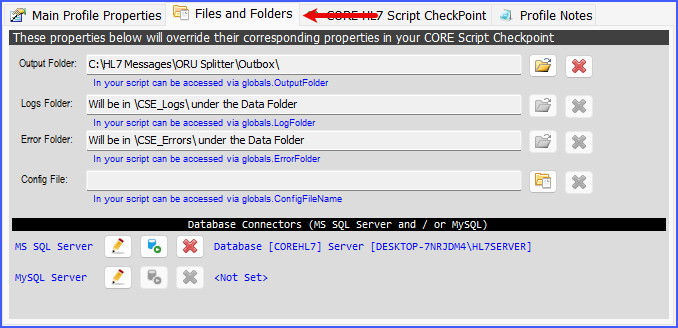
Files and Folders (Type 1 Profile)
In Files and Folders you can set 6 different properties. These properties mirror 6 identical properties which are part of any CORE HL7 C# Script (See System Architecture). When the CORE HL7 Script Engine software runs your profile (see Running Your Script Engine) it will override these 6 properties in your script with the values that you set here. The first 4 properties are:
•Output Folder. Will be a fully qualified windows path to a folder. It can be accessed in your script using globals.OutputFolder.
•Logs Folder. Another windows path to a folder. It can be accessed in your script using globals.LogFolder. If this property is not set (or is invalid) then there will be no runtime logs created when your script runs and any calls to globals.LogIt() or globals.TraceLog() will be ignored.
•Error Folder. Another windows path to a folder. It can be accessed in your script using globals.ErrorFolder. This property is used for methods like globals.MoveInitialMessageToError() and if it is not set (or is invalid) that method will do nothing.
•Config File. This will be a full path / file name to a file on the local file system. This can be any type of file you like (.txt, .xml, etc.) which contains information that your script will read if it needs additional information or properties to run.
In Type 1 profiles, the Logs Folder and Error Folder are set automatically (and created) for you and will be in \CSE_Logs\ and \CSE_Errors\ under the HL7 Data Source Folder you selected in Main Profile Properties.
Finally, in Files and Folders you can create database connectors. These connectors will OVERRIDE the corresponding connectors which may exist in your CORE HL7 Script. You can create:
•A Microsoft SQL Connector. See Script Reference.
•A MySQL Connector. See Script Reference

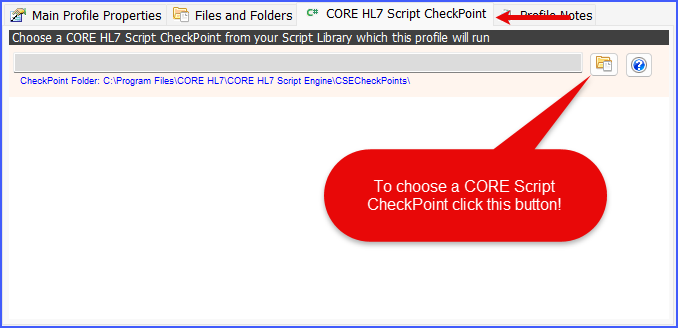
Script CheckPoint Tab (No CheckPoint Selected)
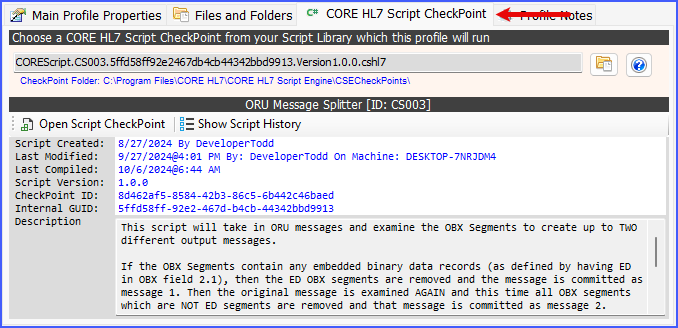
Script CheckPoint Tab with CheckPoint
In the CORE HL7 Script CheckPoint tab you select the script CheckPoint which your Script Engine Profile will run.
 Profile Notes
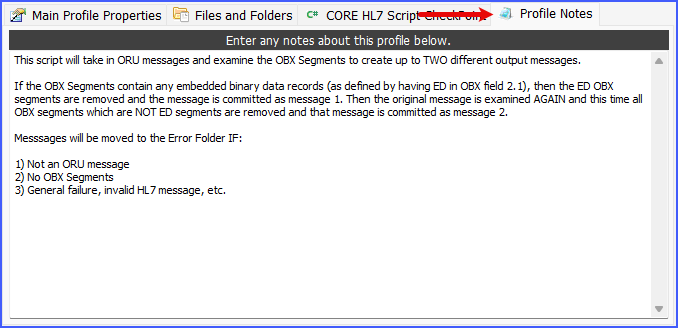
Script CheckPoint Tab (No CheckPoint Selected)
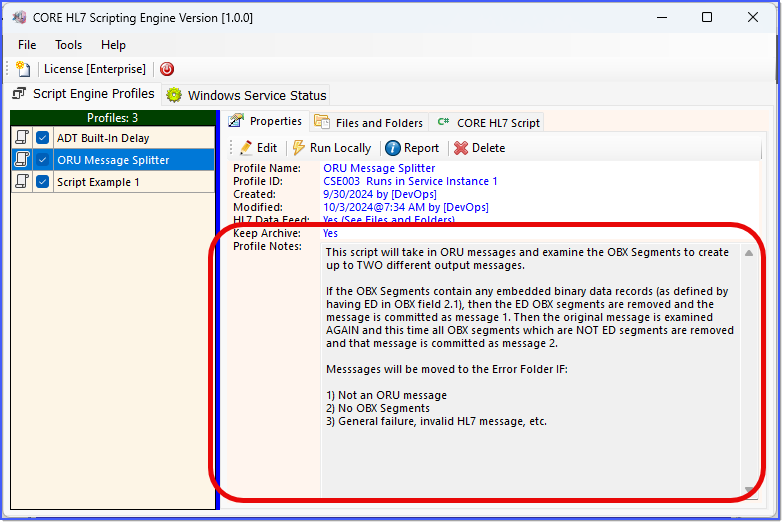
In the Profile Notes tab you can enter whatever descriptive notes you deem appropriate. It is typically a good idea to at least give a brief description of what the script actually does. This field is important because it will show up in the Main Window when you have the script selected as shown in the screenshot below.
The Main Window (Version 1.0)
