
Script Engine Profile Main Properties
When you create your Script Engine Profile, at the top of the window you assign the Service Instance. Here you have 5 choices:
•Unassigned. This means do NOT run the profile in a Windows Service.
•Instance 1. Run the profile in the Windows Service Instance 1.
•Instance 2. Run the profile in the Windows Service Instance 2.
•Instance 3. Run the profile in the Windows Service Instance 3.
•Private Service. Run the profile in a Private Service.
The Script Engine Windows Services are multi-threaded and there is nothing wrong with just assigning all of your Script Engine profiles to run in Service Instance 1. We provide the extra services, IE Service Instances 2 and 3 and Private Services, just to provide you with more flexibility.

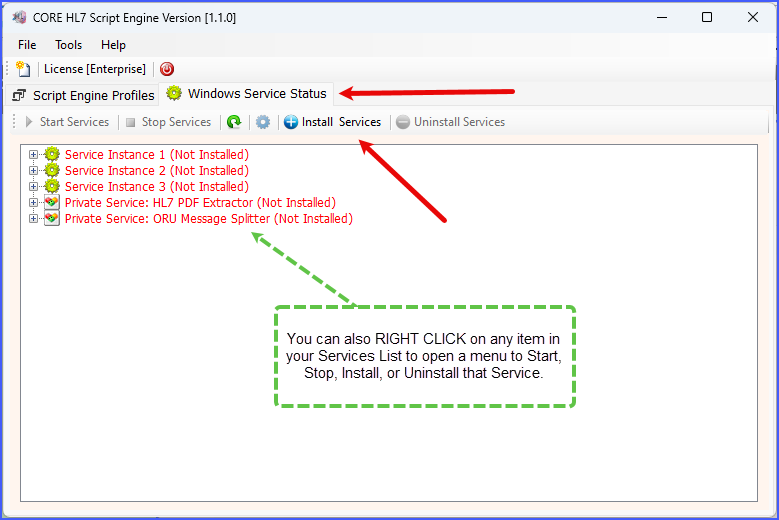
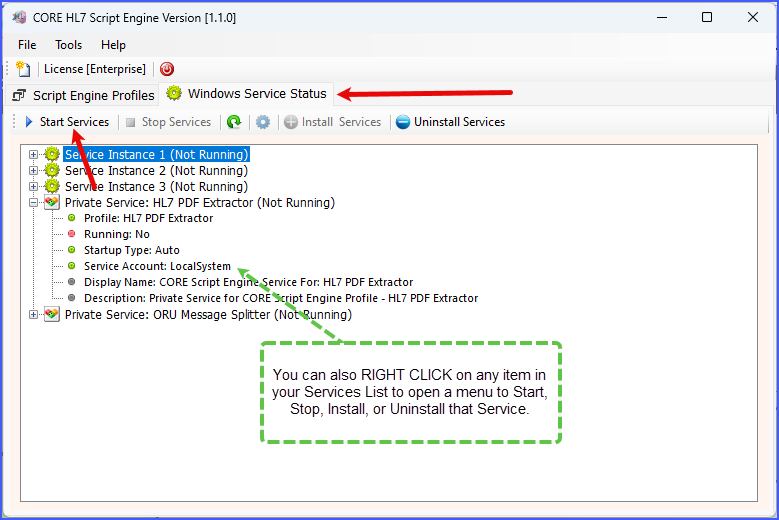
To run a profile interactively it CANNOT be currently running in a Windows Service. To do this you just select the profile you want to run and click the Run Locally button in the main window.
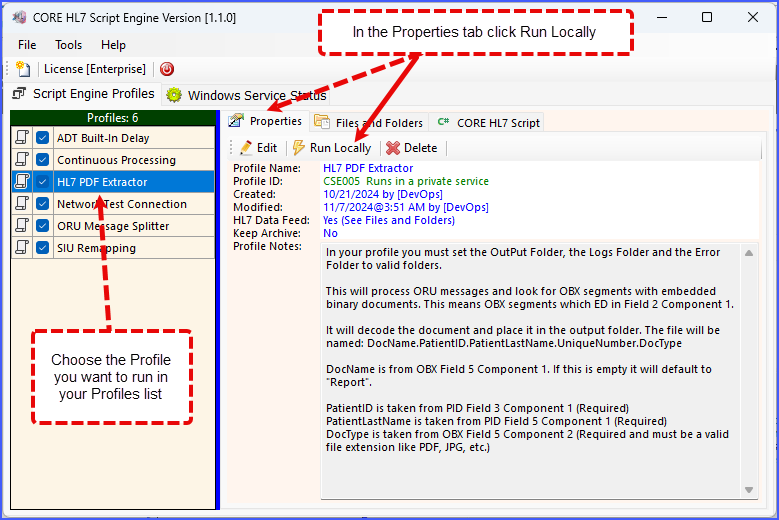
Start Running Locally
After you click Run Locally the runtime window will open up OR you will get an error message IF the profile you have selected is currently running in the Windows Service.

Run Locally - Ready To Start
In the Run Profile window just click the Start button and your profile will start running. You can also click any of the  buttons to open the relevant folder in Windows File Explorer.
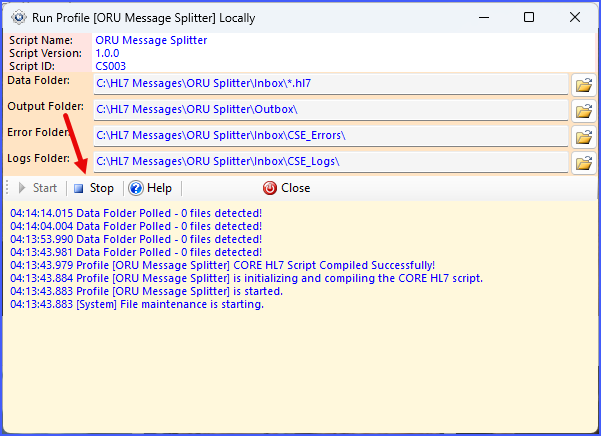
Run Locally - Script Running
