CORE HL7 Postmaster

Created with the CORE HL7 API Libraries for .Net 8
A CORE MS SQL Data Source will query your CORE MS SQL Schema database using parameters that you enter, retrieve HL7 messages from the database, and finally write them out to the Central Distribution Folder.
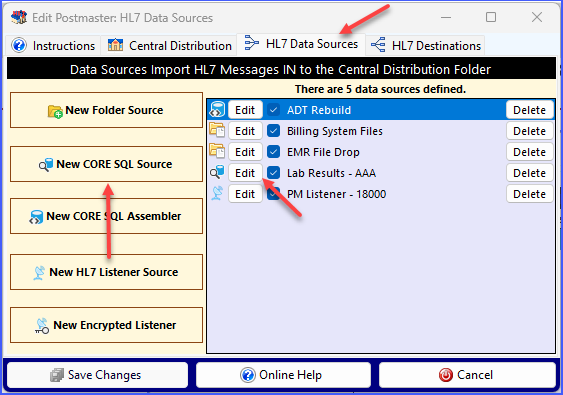
Postmaster Data Sources
When you are creating or editing your Postmaster go to the HL7 Data Sources tab and click  New CORE SQL Source to open the Add / Edit a CORE MS SQL Data Source window OR you click the Edit button in the Data Sources list to Edit an existing CORE MS SQL Data Source.
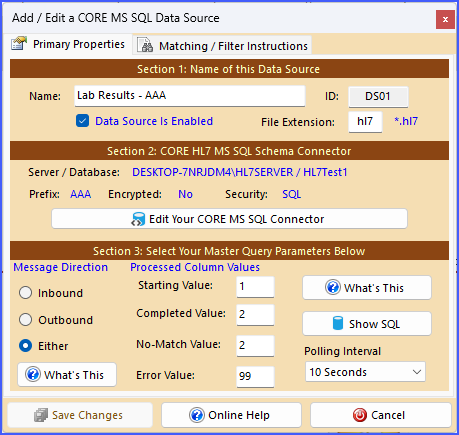
CORE MS SQL Data Source
Section 1. Name your Data Source and Enable or Disable it.
Section 2. Set up your CORE MS SQL Schema Connector
Section 3. Master Query Parameters
In Section 3 you set up the main selection query by setting up 2 sections.
Message Direction
In a CORE MS SQL Schema, the main table named: <PREFIX>_HL7Data (in the screenshot above this table would be named AAA_HL7Data) contains 2 numeric data columns one named Inbound, and one named Outbound. As HL7 messages are imported into the Schema tables the Inbound column is set to 1 and the Outbound column is set to 0, indicating that this is an inbound message coming IN to the database.
According to the way that we designed the system, these 2 columns SHOULD always be mutually exclusive, meaning that one of them MUST have a value of 1 and the other MUST have a value of 0 to indicate the Message Direction. Does the record represent a HL7 message coming IN to the database OR is it a message which has been created or modified in the database and represents a HL7 message going OUT of the database. All of this being said, we recognize that this is YOUR database, and you may have different ideas, so you are not absolutely bound to this data model.
Thus, you have the Message Direction flag which works the same for both the CORE SQL Schema Data Source AND the CORE SQL Schema HL7 Assembler Data Source. Here you have 3 choices:
•Inbound – Select only records where the Inbound column is NOT ZERO.
•Outbound – Select only records where the Outbound column is NOT ZERO.
•Either – Means to effectively ignore the Inbound and Outbound columns.
Processed Column Values
The Processed column values works the same for both the CORE SQL Schema Data Source AND the CORE SQL Schema HL7 Assembler Data Source..
In a CORE MS SQL Schema, the main table named: <PREFIX>_HL7Data contains a numeric data column named Processed. As HL7 messages are imported into the Schema tables this value will have the default value of zero (0). We use this column as a sort of STATUS column. For instance, in the CORE MS SQL Schema Engine, it is used in database maintenance to determine if a HL7 message has been “processed” and can be purged. A zero (0) in the column means NO, any non-zero value means YES.
We use the column as well for external processes (like the CORE HL7 Postmaster) which access or update a CORE MS SQL Schema in the main select queries to identify a set of records which needs action, and then after the action is performed the value is updated so it won’t return in the next select query.
Example (Schema Prefix = AAA):
Select MessageID from AAA_HL7Data Where Processed = 0 Order By LastLoaded
This query returns a result containing <xx> number of records. We iterate through that result set taking whatever action needs to be taken using the MessageID value as the key. Once we have completed the action, we need to update the AAA_HL7Data table so that when we poll the schema using that query again, we don’t just get the same results. This is where the OTHER Processed Column values come into play.
•Starting Value – The initial value used in the MAIN select query (as shown above).
•Completed Value – What value should we set the Processed column to if we successfully complete our task.
•No-Match Value – If you have defined Matching Instructions and a HL7 message does NOT match those instructions what value should we set the Processed column to. If you have not defined matching instructions, this value is ignored.
•Error Value – If an error occurs while processing what value should we set the processed column to.
The main takeaway for you here is that NONE of the finishing values (Completed Value, No-Match Value, Error Value) can be the SAME as the Starting Value.
Optional. Add Matching Instructions.
When you have completed your edits click the  Save Changes button.
