CORE HL7 Postmaster

Created with the CORE HL7 API Libraries for .Net 8
In all of our HL7 products we always go to great lengths to explain to customers that our products do NOT process "files". Our TCP/IP Senders do not send "files", our HL7 Listeners do not receive "files", our SQL Database Engines do not import "files". In the world of HL7 the physical "file" containing HL7 messages means nothing to us, it is just a container which stores HL7 messages. Our products remove HL7 messages from "files" and if we need to store a HL7 message on the file system we create new "files".
For every rule there is always an exception and the Folder Data Source in our HL7 Postmaster products is that lone exception. It actually MOVES physical "files" from the Data Source data folder into the Central Distribution folder of the CORE HL7 Postmaster.
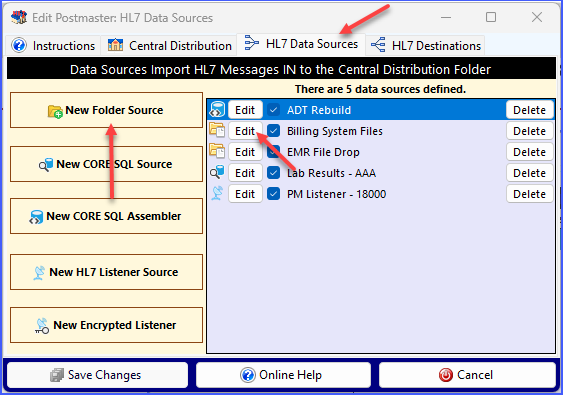
The Edit Postmaster Window
To create a new Folder Data Source, from the Edit Postmaster window go to the HL7 Data Sources tab and click the New Folder Source button, OR to edit an existing Folder Data Source click the Edit button as shown above.

Editing a Folder Source
This is really a very simple window. You just have to give the data source a name, then choose the folder and file extension and decide whether it is enabled or not, then click Save Changes.
Some notes about how the window works. To choose a folder click the  browse button OR you can double-click the Source Folder field to enter the path manually. The File Extension is required and can be 1-5 alphanumeric characters (the underscore _ character is also allowed), no wild card characters are allowed. As you change the File Extension field you can see the search pattern you are creating next to the field.
IMPORTANT: The File Extension you choose MUST match the main Postmaster file extension you have set in the Central Distribution tab for your postmaster OR the main Postmaster file extension MUST be *. Example, if you have set the main file extension in the Central Distribution tab to be HL7, your Folder Data Source file extension MUST be HL7 (not case-sensitive). Why is explained below.
When you have completed your edits click the  Save Changes button.
How it works.
At runtime your postmaster will poll the source folder for files with the file extension you enter here. When it encounters files that match it will MOVE them into the Central Distribution Folder. This is important to know because your postmaster will NOT ever OVERWRITE a file in the Central Distribution Folder.
Example: In your source folder there is a file named Messages.hl7. At runtime your Folder Data Source MOVES that file into Central Distribution, so now there is a file named Messages.hl7 in Central Distribution and the original file has been removed from the Source Folder. IF the Folder Data Source polls the Source Folder again and discovers another file named Messages.hl7 it will NOT move that file into Central Distribution unless it has been consumed (removed) by either the Postmaster itself (IE queued up and dispatched to a Destination), or by one of your own processes if you create a Postmaster which has no destinations. But wait, there's more. IF this situation occurs your Folder Data Source will NOT move ANY other data files from the Source Folder into Central Distribution until the situation is resolved. It will back up, wait for 60 seconds, and then try again.
But WHY do we ignore other files waiting in the Source Folder just because there's 1 file that can't be moved??
Answer: Because this is HL7 and it is serious business. We MOVE the files from the source folder in last modified date order (oldest first). Our primary assumption is always that the "stuck" file may contain a vital message regarding patient care (like a peanut allergy for instance) and that the NEXT file is a message containing the patient's lunch order requesting a peanut butter sandwich, making it absolutely critical that your system processes the "stuck" file to completion before allowing the next message through.
