It's very difficult to document how to insert the HL7 data into the SQL Schema properly since so much of this process relies on you and HOW you actually get the data from your own system and what process/language you are developing this process in.
To understand HOW to create the data for an outbound message, it's important that you know how the Schema Engine IMPORTS messages. This is very important because when creating OUTBOUND messages your job is to basically do the same thing as an Inbound Process does, only you have to do it backwards.
When IMPORTING a new HL7 message into your schema CORE Import Operation performs the following steps:
1. It Generates a Unique MessageID (GUID)
2. It inserts a row into the <PREFIX>_HL7Data table. When it's inserted the row will have the Inbound field set to 1 (this is an INBOUND message), the Loaded field set to 0 (the processor has NOT finished loading the underlying data tables), the Processed field set to 0 (YOU have not 'processed' the message yet), the LastLoaded Field is set to the system date/time, the HL7Message field will contain the ENTIRE HL7 Message and the PartnerApp field will contain a compound key to prevent duplicate messages from being loaded. See the online help for the CORE MS SQL Schema Engine for more information.
3. It performs a Database Training operation (see the CORE SQL Schema Engine Help) to make sure that the Schema contains ALL necessary tables, and columns, and column SIZES to support the HL7 message about to be imported.
4. It then populates the <PREFIX>_MessageManifest table. This table basically contains a sequential listing of every segment which occurs in the message (MSH segment is always #1).
5. It then populates all of the appropriate underlying segment database tables with the parsed HL7 data fields/component data.
6. After all of this has been done, the processor will return to the <PREFIX>_HL7Data and update the Loaded field setting it to 1. Indicating that the processor has completed loading the message into the schema tables and it is now safe for you to process at your leisure.
TO CREATE NEW MESSAGES
When EXPORTING HL7 messages you have to do this exact process only (almost) in reverse.
1. You must generate a UNIQUE MessageID. We use a GUID (Select NewID() in MS SQL Works just fine), but any guaranteed unique key value which will fit into the MessageID columns is fine.
2. (NOTE that steps 2 and 3 are interchangeable). You should then insert the appropriate rows into the <PREFIX>_MessageManifest table. Again this table contains only 3 pertinent columns the MessageID (generated in step 1), the SegmentName (MSH, PID, EVN etc, etc) and the SegmentIDX which is the physical sequence in which each segment should appear in the message. MSH = 1, and so on and so on. There should be 1 row in this table for every HL7 segment which your message will contain. This SegmentIDX column is used to link/list the IDX column in the underlying segment data tables.
3. (NOTE that steps 2 and 3 are interchangeable). You then populate the underlying data tables by inserting rows with MessageID (generated in step 1) and IDX (equal to the SegmentIDX from step 2) and then complete the data fields. IMPORTANT NOTE: If you are creating HL7 segment data for a segment which has 2 tables associated with it (Like the IN1 segment or GT1 segment etc) then you must insert a row into BOTH the _A table and the _B table even if you aren't populating any data fields other than the MessageID and the IDX.
4. After you have done all of this then you will insert a row into the <PREFIX>_HL7Data table using the MessageID (generated in step 1). ANOTHER IMPORTANT NOTE: If you are creating messages that use HL7 Repeating fields or SubComponent values then make sure that you review the section on HL7 Repeating Fields thoroughly.
Inserting Your Row Into the <PREFIX>_HL7Data
[MessageID] [varchar](50) NOT NULL,
[VendorName] [varchar](50) NOT NULL,
[VendorVersion] [varchar](25) NOT NULL,
[MsgControl] [varchar](50) NOT NULL,
[PartnerAPP] [varchar](128) NOT NULL,
[DateLoaded] [datetime] NULL,
[LastLoaded] [datetime] NULL,
[LoadCount] [int] NULL,
[MsgType] [varchar](20) NOT NULL,
[MsgEvent] [varchar](20) NULL,
[Outbound] [int] NOT NULL,
[Inbound] [int] NOT NULL,
[CoreHL7API] [int] NOT NULL,
[Processed] [int] NOT NULL,
[Warnings] [int] NULL,
[Loaded] [int] NOT NULL,
[SchemaLoaded] [int] NOT NULL,
[StatusMessage] [varchar](1024) NULL,
[ArchiveID] [varchar](50) NULL,
[HL7Format] [int] NULL,
[SegmentCount] [int] NULL,
[MessageSize] [int] NULL,
[HL7Message] [varchar](max) NULL,
•MessageID - Your unique MessageID (See step 1 above)
•Vendor Name - CORE HL7 Vendor Name defined in the CORE SQL Schema Profile (Example: Default).
•Vendor Version - The EasyHL7 Vendor Version defined in the Schema Profile (Example: 2.3).
•MsgControl - The HL7 Message Control Number (MSH Field 10)
•PartnerAPP - This field is used by Inbound Processors to determine uniqueness. However it is indexed so we recommend that you also set this field to your MessageID.
•DateLoaded - Defaults to GetDate()
•LastLoaded - Defaults to GetDate()
•LoadCount - Set to 1
•MsgType - The HL7 Message Type (MSH Field 9, Component 1)
•MsgEvent - The HL7 Message Event (MSH Field 9, Component 2)
•Outbound - Set to 1 (this is an outbound message)
•Inbound - Set to 0 (this is NOT an inbound message)
•COREHL7API - Set to 1.
•Processed - IMPORTANT. Set to the Starting Value in your Data Source.
• Warnings - Ignore (Default 0).
•Loaded - Ignore (Default 0).
•SchemaLoaded - Ignore this field
•StatusMessage - Ignore
•ArchiveID - Ignore
•HL7Format - Ignore
•SegmentCount - populated by the Outbound Process
•MessageSize - populated by the Outbound Process
•HL7Message - IMPORTANT. IGNORE. The HL7Message field is populated by the Outbound Process. Before it exports the message to an HL7 file the processor will insert the entire HL7 message into this column.
|

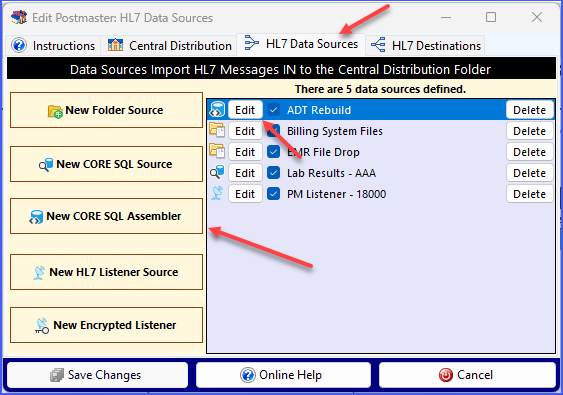
 New CORE SQL Assembler to open the New CORE MS SQL Message Assembler window OR you click the Edit button in the Data Sources list to Edit an existing CORE SQL Assembler.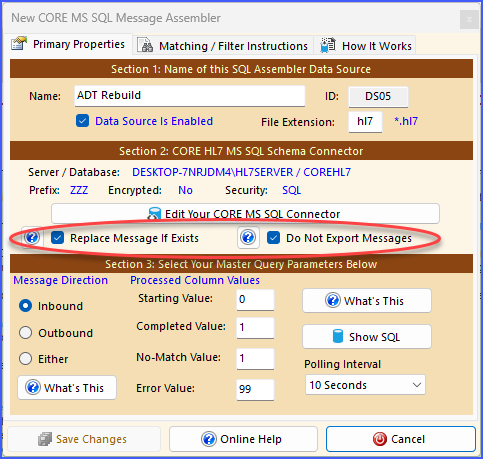

 Save Changes button.