CORE HL7 Postmaster

Created with the CORE HL7 API Libraries for .Net 8
The number of HL7 TCP/IP Listener Data Sources you can create is determined by the type of license you own for the CORE HL7 Postmaster (See How Licenses Work).
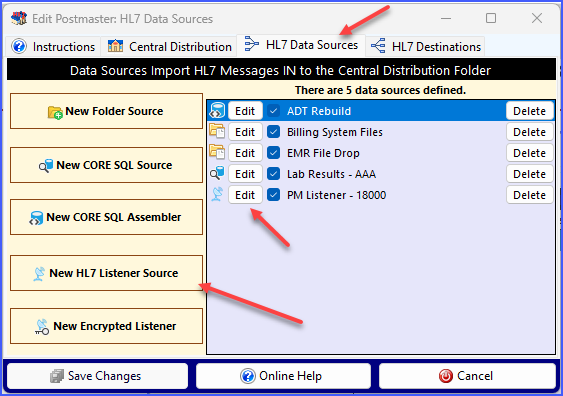
When you are creating or editing your Postmaster go to the HL7 Data Sources tab and click  New HL7 Listener Source to open the Postmaster TCP/IP Listener window.

Creating a TCP/IP Listener Data Source
This window is broken into 3 sections. There are HELP buttons ( ) strategically placed around the window to give you Quick Help regarding any particular field or set of fields. Once you have completed entering or editing your data click the
  Save Changes button or
  Cancel to return to the Edit Postmaster window.
Section 1: Name of this Data Source
A CORE HL7 Listener data source might seem complex on first glance, but it's really not. 95% of the time or more there are only 3 empty fields that you need to complete (ALL in Section 1) and you can accept the 'Default' values on all the other fields. These fields are:
1.The Data Source Name. Just enter a free form name for your Listener data source which you have not already used for data source.
2.The Port Number. In HL7 TCP/IP communications it is most often the entity running the LISTENER (that's you) who gets to decide the HL7 listener port. You can enter any valid port number in this field which is NOT being used by another Listener profile OR some other TCP/IP Listener. For example, Microsoft SQL Server is a "Listener", it "Listens" for SQL traffic on port #1433. If you created a CORE HL7 Listener data source and assigned it port 1433 AND the server was also running Microsoft SQL Server, something bad would happen. Either your Listener won't work OR SQL Server won't work. A good rule of thumb is to use a port number between 2048 and 65535.
3.Enable or Disable your data source.
As explained above, if you fill in these fields then you are very likely done. Just click Save Changes and your Listener data source profile is complete.
Section 2: Acknowledgement Settings
Send Acknowledgements: When your Trading Partner sends you a HL7 message they will expect you (your CORE Listener) to send back a HL7 ACK indicating that you have received and accepted the message. In this field you have 3 choices, Automatic, Always, and Never. Always and Never are self-explanatory, choosing Always your CORE Listener will send an ACK for every message, and Never means that we do NOT send back an ACK. If you check Automatic (which is the default) your Listener will look at the MSH segment of the incoming message and determine IF the Trading Partner is expecting an ACK and if so, it will send the ACK.
Mirror Control ID (MSH 10.1): A HL7 ACK is itself a very short HL7 message. As such your CORE Listener will assign it a unique Message Control ID (MSH 10.1). Some Trading Partners might insist that you echo the Message Control ID of the HL7 message being acknowledged and use it as the Message Control ID in the ACK message. Checking this box will make that happen.
Include Message Event (MSH 9.2): As explained above, the ACK is a fully formed HL7 message. The message type (MSH 9.1) is always ACK. Some Trading Partners might also want you to echo the message event (MSH 9.2) of the HL7 message being acknowledged in the ACK message. Checking this box will make this happen.
Use CA/CE Acknowledgement Types Instead of AA/AR: Part of the ACK message is the Acknowledgement Type. The most common Types are AA (accepted) AR (rejected) or AE (error). Your CORE Listener will always return the AA Ack Type unless an error occurs writing the HL7 message to the Data Folder (Central Distribution Folder) in which case it will return an AE ACK and then stop listening for new messages until the problem with the Data Folder is fixed. In rare occurrences your Trading Partner might insist that you send back a CA or CE Ack Type. CA and CE are conditional. CA means Conditionally Accepted. CE means Conditional Error.
Archive Acknowledgements Sent. Check this box and your Listener will keep a daily archive of the HL7 Acknowledgements sent back. Not really necessary unless you have a business need. See Additional Information below for information about where these archives are kept.
Section 3: Performance and Recovery
Restart Listener if idle for too long: Checking this box might help if your VPN connections are, shall we say, less than reliable. It will tell the profile to reset itself (stop and restart) if no HL7 messages are received for the time specified by you.
Deliver 'Raw' HL7 Messages. By default your CORE HL7 Listener will optimize the HL7 messages received before writing them to disk. Choose this option and the 'RAW' HL7 is written to disk instead as is done when Malformed Messages are received.
Additional Information About the TCP/IP Listener
At runtime your listener will keep detailed Traffic Logs, if you opted to have ACKs archived they will also be kept. All of these items (along with Malformed messages) are kept in the Logs folder. This folder will be a sub-folder of the Central Distribution Folder for the Postmaster. The Logs sub-folder will be named <CentralDistribution>\<PostmasterID>.<DataSourceID>\. In the Main Window you can click the  button in the Data Sources List to see a report which will show you all relevant folder locations for your data source.
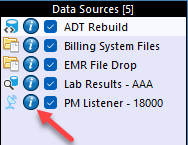
Data Sources List
Here is an example report:
Postmaster: [PM006] Coopers Beach
Listen for HL7 on Port Number: 18000
Return Acknowledgements: Automatic
Optimize HL7 Data: Yes
TCP/IP Envelope (Hex Values) - BOM: 0B EOM: 1C-0D SOM: 0D
Relevant Folders
Save Files To: C:\HL7 Messages\CPM\CD1\*.hl7
Logs Folder: C:\HL7 Messages\CPM\CD1\PM006.DS04\
Traffic Logs Folder: C:\HL7 Messages\CPM\CD1\PM006.DS04\Traffic\
Error Folder: C:\HL7 Messages\CPM\CD1\PM006.DS04\Malformed\
Archive ACKS Folder: C:\HL7 Messages\CPM\CD1\PM006.DS04\Acknowledgements\*.hl7

Creating A TCP/IP Listener
Your CORE HL7 Listener(s) receive data in a stream, and they will evaluate that stream to determine if it contains a recognizable HL7 message. Data which is unrecognized as HL7 is ignored (eaten) by the Listener. This means that if someone sends a recipe for soup into your HL7 Listener it is ignored.
However, it is possible for data to be received which is formatted just enough to recognized as probably a HL7 message attempt but is still fundamentally malformed according to the world governing bodies of HL7 (HL7.org). Some examples might be:
•No Message Control ID. The Message Control ID (MSH 10.1) is ABSOLUTELY required to exchange HL7 messages over TCP/IP. It is this field which your Listener(s) use to send ACKs back to the sender.
•Only 1 segment detected. There is no VALID HL7 message which contains only 1 segment. Even a HL7 ACK messsage contains 2 segments. If this scenario occurs it is usually a miscommunication between the sender and the receiver over what to use as the SOM (Segment Delimiter).
•Improperly Escaped Data. This can occur if the body of the HL7 message contains an unexpected SOM character or CRLF.
IF your CORE HL7 Listener(s) detect a malformed message it will still ACK the message as expected but instead of writing the message out to the Data Folder, it will write the message out to the Malformed sub-folder of the Data Folder. The data files will be created using same naming convention as regular data files, BUT, the malformed message is NEVER "Optimized" according to your selections in your Listener Profile(s), the malformed files will always contain only the "Raw" HL7 exactly as received by your Listener.
