CORE HL7 Postmaster

Created with the CORE HL7 API Libraries for .Net 8
Receiving Encrypted HL7 Messages
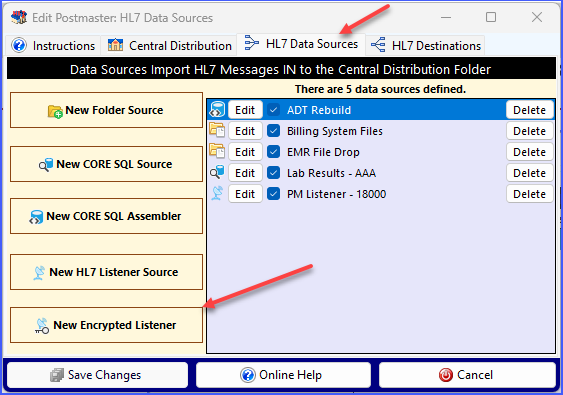
In the Edit Postmaster window you create or edit an IPSec Tunnel Listener by going to the HL7 Data Sources tab. Click New Encrypted Listener to create a new IPSec Tunnel Listener OR click the Edit button next to an encrypted listener item in the list to edit the data source.

IPSec: IPsec (Internet Protocol Security) is a set of protocols that provide security for IP packets. It ensures that the data being transferred is encrypted and protected from unauthorized access.
Tunneling: In the context of IPsec, tunneling involves encapsulating or wrapping the original IP packet within another IP packet. It's like placing a letter inside an envelope. This process adds an extra layer of security to the original packet.
Security Associations (SA): Before the data transfer begins, the devices establishing the IPsec tunnel create a Security Association. This SA defines the encryption algorithms, authentication methods, and other security parameters to be used during the communication. To do this we use an X.509 certificate which enables at a minimum TLS 1.2 encryption. This certificate can be either one that you (our customer) has purchased from a recognized cetificate authority OR it can be a "self-signed" certificate issued by YOU (our client) OR it can be the "default" certificate which is also a "self-signed" certificate which is created by the CORE HL7 Postmaster software and is only valid for the computer on which the Postmaster software is installed.
Encryption and Authentication: Once the tunnel is established, the data packets are encrypted. Encryption converts the original data into an unreadable format using a specific algorithm. Authentication ensures that the received data is from a trusted source and hasn't been tampered with during transit.
Data Transfer: The encrypted data packets are then sent through the IPsec tunnel over the TCP/IP protocol. As the packets travel across the network, they remain secure because they are protected by the encryption and authentication provided by IPSec.
Decryption and Verification: When the packets reach their destination, they are decrypted using the appropriate algorithm and security parameters defined in the SA. The data is then verified to ensure its integrity and authenticity.
Delivery: Once the data is decrypted and verified, it is handed over to the TCP/IP protocol for further processing. The original data is reconstructed from the packets, and it can be accessed by the intended recipient.
In simple terms, an IPSec tunnel creates a secure "tunnel" within the existing internet infrastructure. It encrypts the data, wraps it in an extra layer of protection, and securely delivers it to the destination, ensuring confidentiality and integrity throughout the transfer.
|
FREE Client Software for sending HL7 Messages to a CORE HL7 IPSec Tunnel Listener: Download from our website OR from HERE.
1.No VPN Required! The IPSec Encryption protocols and Key exchange built into the CORE HL7 Postmaster meets or exceeds all known national or international security requirements for the exchange of medical data.
2.Low cost. You must have the CORE HL7 Postmaster licensed and installed on a server to create the IPSec Tunnel Listener, but with any valid Postmaster license you can create as many IPSec Tunnel Listener(s) as your system will support (which is quite a few).
3.FREE Client HL7 Sending software. To SEND to our IPSec Tunnel Listener you can use the CORE HL7 Postmaster IPSec Tunnel Sender Destination (which would require a Postmaster license), but we also provide (and support) the free CORE HL7 IPSec Sending software which you can download from our website and freely redistribute.
4.Can be used as a very secure and reliable method for exchanging HL7 messages from within your own LAN or WAN, eliminating the need to share network folders.
|

Editing an IPSec Tunnel Listener
Section 1. Name your Data Source and Enable or Disable it. In this section you also enter the Port Number you wish to this profile to use to listen for HL7 messages. NOTE: Only ONE application can "listen" on a TCP/IP port at a time, so make sure that you don't have any other TCP/IP Listeners (like another TCP/IP Listener data source) using the same port.
Also in Section 1 you will choose the Listener Scope. With the IPSec Listener you have 3 different (actually 2 + more) options in this drop-down list:
1. All Local IP Addresses. (Most commonly used) This works similar to our standard HL7 TCP/IP Listener. Your IPSec Tunnel listener will "listen" for IPSec data on every IP address on the computer / server.
2. Local Host Only. (Least commonly used) This means that it will listen for HL7 messages ONLY on the LocalHost ip address and thus can ONLY receive HL7 messages from an IPSec Tunnel sender on the same computer.
3+ Ip Addresses. After options 1 and 2 the list will contain every IP address on the computer. You can select one of them and your Listener Profile will only "listen" for IPSec data on that IP Address.
Section 2. Set up your Client Credentials which are allowed to send to this listener. Your Client Credentials are an added layer of security on top of the already impressive IPSec Tunnel. In the CORE HL7 Postmaster you create a Master Credentials list of Client IDs and Passwords. Any new client that needs to send HL7 messages to this profile MUST use these credentials in their IPSec Sender software. You can just click the Copy button in the Credentials list to copy the Client ID and Password to the Windows clipboard to easily paste into an email or document to provide to the client with connection instructions. While your profile MUST have at least 1 credential, you can also have as many credentials as you like on each IPSec Tunnel Listener. To remove a credential click the Delete button. NOTE: This Delete operation ONLY removes the credential from the Listener profile. To permanently remove a client credential you have to edit the Master Credentials list. See Client Credentials for more information.
To select a credential just click the  Choose Authorized Clients button.
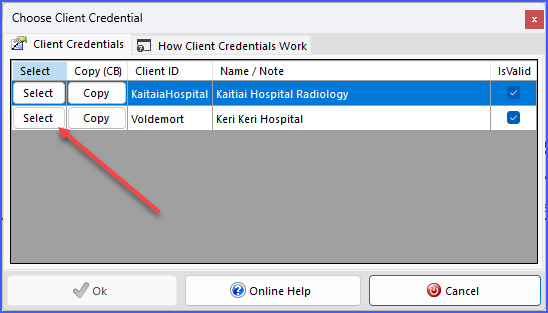
Click the Select button to Choose
In Section 2 you can also choose your own X509 encryption certificate if you like.
The CORE HL7 Postmaster will generate a "default" X509 certificate for the computer your software is installed on. This is a completely valid "self-signed" X509 certificate which can be used for any IPSec tunnel requirements. If you would rather use your own certificate, whether "self-signed" by your own organization OR purchased from a Certificate Authority (CA) you can. Just follow the steps below.
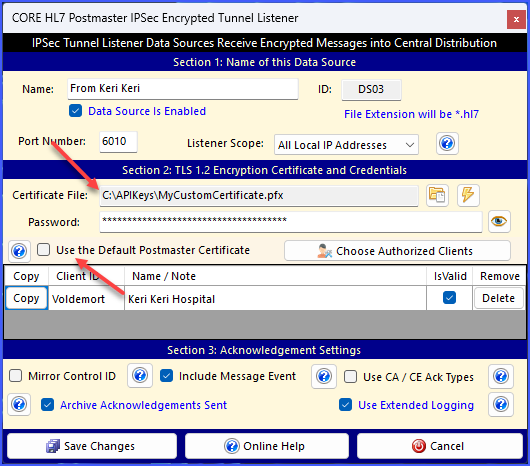 Using Your Own Certificate
In the Edit window just UNCHECK the Use the Default Postmaster Certificate box. This will show the section where you select your certificate file (*.pfx) by clicking the  browse button. Your certificate must be a PFX file and it must use a Password which you can enter here (max 1024 characters). browse button. Your certificate must be a PFX file and it must use a Password which you can enter here (max 1024 characters).
You can verify your certificate by clicking the  verify button. verify button.
If you choose this option your certificate MUST pass our basic certificate validation before you can  Save Changes on an Enabled IPSec Listener profile. Save Changes on an Enabled IPSec Listener profile.
|
Section 3: Acknowledgement Settings
Mirror Control ID (MSH 10.1): A HL7 ACK is itself a very short HL7 message. As such your CORE Listener will assign it a unique Message Control ID (MSH 10.1). Some might insist that you echo the Message Control ID of the HL7 message being acknowledged and use it as the Message Control ID in the ACK message. Checking this box will make that happen.
Include Message Event (MSH 9.2): As explained above, the ACK is a fully formed HL7 message. The message type (MSH 9.1) is always ACK. Some might also want you to echo the message event (MSH 9.2) of the HL7 message being acknowledged in the ACK message. Checking this box will make this happen.
Use CA/CE Acknowledgement Types Instead of AA/AR: Part of the ACK message is the Acknowledgement Type. The most common Types are AA (accepted) AR (rejected) or AE (error). Your CORE Listener will always return the AA Ack Type unless an error occurs writing the HL7 message to the Data Folder (Central Distribution Folder) in which case it will return an AE ACK and then stop listening for new messages until the problem with the Data Folder is fixed. In rare occurrences your Trading Partner might insist that you send back a CA or CE Ack Type. CA and CE are conditional. CA means Conditionally Accepted. CE means Conditional Error.
Archive Acknowledgements Sent. Check this box and your Listener will keep a daily archive of the HL7 Acknowledgements sent back. Not really necessary unless you have a business need. See Additional Information below for information about where these archives are kept.
Scenario: I have a CORE HL7 IPSec Tunnel Listener on Computer1 listening on Port 9000. Computer2 is 1000 miles away on a different network and needs to send me HL7 messages using the CORE HL7 IPSec Client Sender. What do I need to do to ensure connectivity over the internet without requiring a VPN?
To ensure successful communication between Computer1 and Computer2 over the encrypted IPSec tunnel on Port 9000, you can provide the following advice to your customers regarding firewall and hardware router configurations:
1. Firewall Configuration:
• Allow inbound and outbound traffic on Port 9000 for both TCP and UDP protocols.
• Ensure that the firewall rules are configured to allow traffic between the IP addresses of Computer1 and Computer2.
 NOTE: For the IPSec Tunnel Listener on Computer1. When setting up Firewall rules and exceptions you will want to just Allow the connection on Port (9000 in this example). Do NOT choose any of the options such as "Allow the connection if it is secure". See the example screenshot below which is from a Windows 11 computer using Windows Defender Firewall. NOTE: For the IPSec Tunnel Listener on Computer1. When setting up Firewall rules and exceptions you will want to just Allow the connection on Port (9000 in this example). Do NOT choose any of the options such as "Allow the connection if it is secure". See the example screenshot below which is from a Windows 11 computer using Windows Defender Firewall.
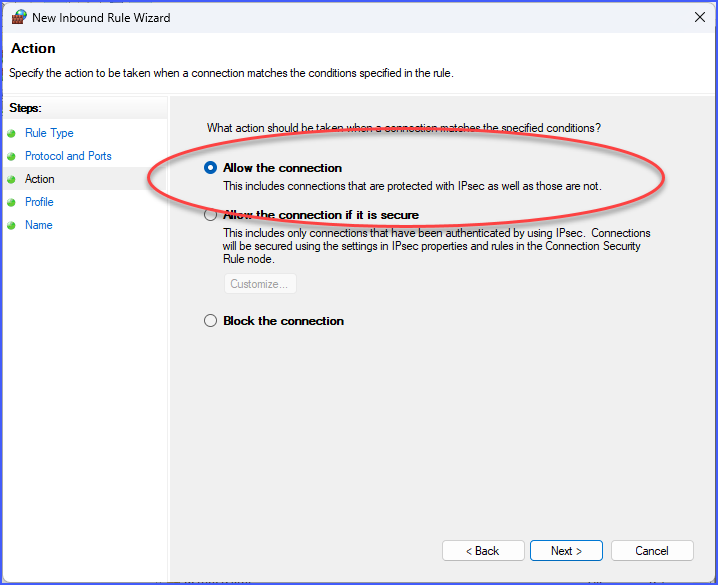 Example: Windows 11 Defender Firewall
But WHY? If it is truly an IPSec encrypted tunnel wouldn't I choose Allow the connection if it is secure? The answer has to do with our implementation of the X509 certificate and that we allow you to use "self-signed" certificates, either ours, or yours. The result is that if you check Allow the connection if it is secure, Windows will try and validate the X509 certificate and it will fail their validation. You can rest completely assured that all traffic coming in to port (9000 in our example) IS ENCRYPTED and any incoming traffic which is NOT encrypted will be rejected outright by the Tunnel Listener on Computer1. You are more than welcome to verify this yourself using any number of 3rd party "port sniffing" software like WireShark etc.
2. Hardware Router Configuration:
• Set up port forwarding or virtual server settings on the hardware router to forward incoming traffic on Port 9000 to the local IP address of Computer1.
• If your application uses a specific range of IP addresses for the IPSec tunnel, ensure that the hardware router allows traffic between those IP addresses.
• If your application relies on Network Address Translation (NAT) traversal, enable appropriate settings on the router to allow IPSec traffic to pass through without interference.
3. Considerations for Dynamic IP Addresses:
• If the IP address of Computer1 is dynamically assigned, you may need to use Dynamic DNS (DDNS) services to ensure proper connectivity. DDNS allows you to assign a domain name to a dynamic IP address, so the tunnel can still function even if the IP addresses change. If the IPSec Sender on Computer2 is within your own LAN or WAN they can then use the DNS Host Lookup property in their IPSec Sender Profile.
It's important to note that the exact steps to configure firewalls and hardware routers can vary depending on the specific models and brands in use. Therefore, it's recommended to consult the documentation provided by the respective manufacturers or seek assistance from their technical support teams for detailed instructions tailored to the specific devices in question.
|
See Also: IPSec Tunnel Sender