CORE HL7 Postmaster

Created with the CORE HL7 API Libraries for .Net 8

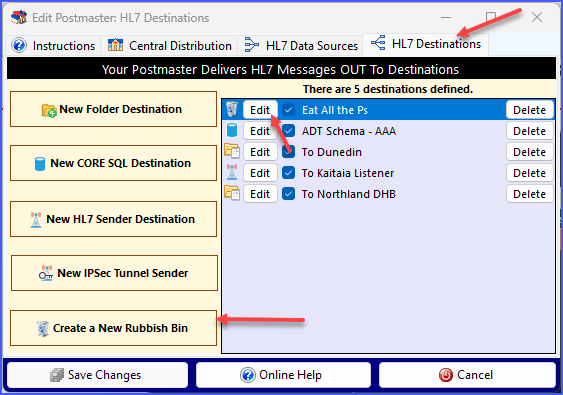
Create or Edit a Rubbish Bin
In the Edit Postmaster window you create or edit a Rubbish Bin Destination by going to the HL7 Destinations tab. Click  Create a New Rubbish Bin to create a new Rubbish Bin Destination OR click the Edit button next to a Rubbish Bin Destination ()to edit the Destination.
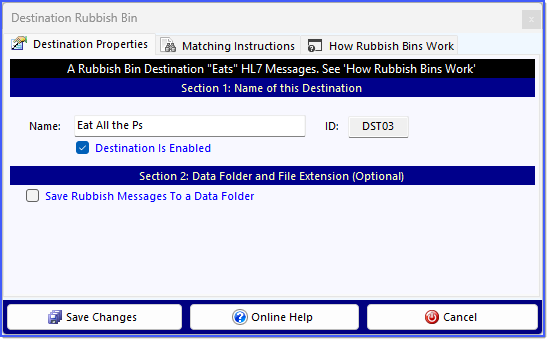
Rubbish Bin (No Data Folder)
A Rubbish Bin is an extremely simple destination. Since the purpose of a rubbish bin is to "eat" unwanted HL7 messages to prevent them from advancing onward and being delivered to your other "real" destinations, you will probably only need to complete 2 fields in Section 1 of the Destination Properties tab.
Section 1:
Name - The name of the Rubbish Bin. Must be different from all other Destination names used by this Postmaster.
Destination Is Enabled - This checkbox will enable or disable this Destination.
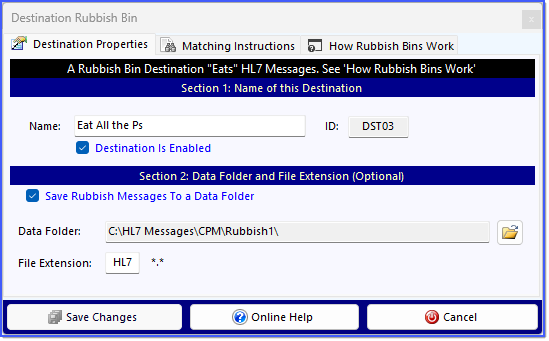
Rubbish Bin (With a Data Folder)
IF you want your Rubbish Bin to save the files which the Rubbish Bin collects you can complete Section 2.
Section 2:
Save Rubbish Bins to a Data Folder - Check this box to save messages to a Data Folder. If you do this your Rubbish Bin becomes an Open End Point and will be monitored by System Watch.
Data Folder - Choose the data folder either by clicking the Browse button OR by double-clicking in the field itself to enter a value by hand.
File Extension - The file extension to use when creating files in this folder. Must be a 1-5 alpha-numeric file extension, the underscore character ( _ ) is also allowed.
IMPORTANT: IF you complete Section 2, then the Rubbish Bin will be added to your System Watch, and it will be your responsibility to make sure that this data folder is cleared out.
All Rubbish Bins MUST have Matching Instructions
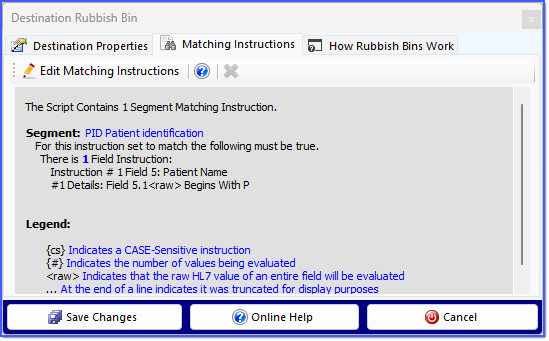
Rubbish Bin Matching Instructions
Since the purpose of a Rubbish Bin is to "eat" or "catch" unwanted HL7 messages and prevent them from advancing to any other End Point, you must enter Matching Instructions for each Rubbish Bin. In the example above all HL7 Messages where the Patient Last Name (PID 5.1) Begins With P will be captured by this Rubbish Bin.
When you have completed your edits click the  Save Changes button.
