CORE HL7 Postmaster

Created with the CORE HL7 API Libraries for .Net 8
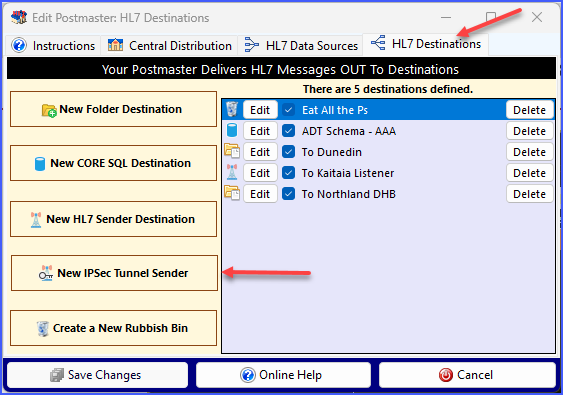
Create or Edit a IPSec Sender Destination


We also provide FREE Client Software for sending HL7 Messages to a CORE HL7 IPSec Tunnel Listener: Download from our website OR from HERE. If this functionality is all that you need, you can avoid purchasing additional Postmaster licenses by using this solution!
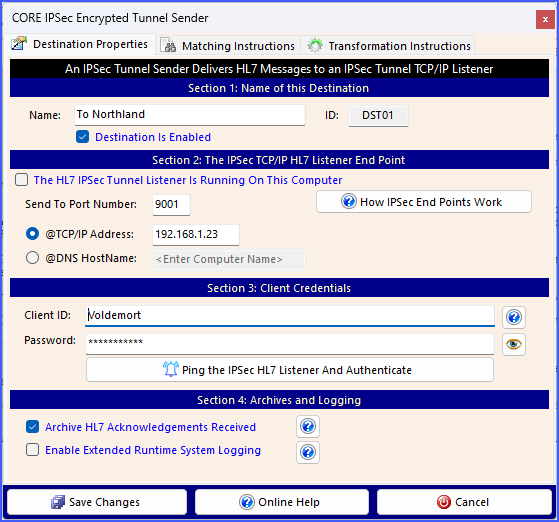
Create or Edit a IPSec Sender Destination
Section 1. Name your Data Source and Enable or Disable it.
Section 2. IPSec HL7 Listener End Point. In this section you enter the Port Number to send HL7 messages to as well as identifying where the IPSec Tunnel is located. If the Listener is running on the same computer just check The HL7 IPSec Tunnel Listener Is Running On This Computer. If you UNCHECK this box you will have 2 other options.
@TCP/IP Address. To send to a specific TCP/IP address check this box and then enter the IP address as shown in the screenshot above.
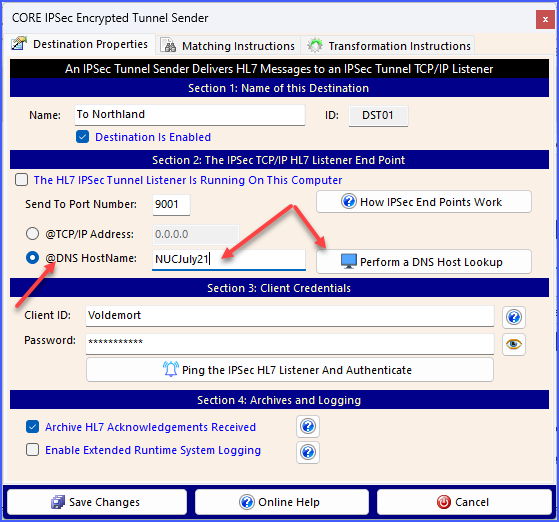
@DNS HostName. You can expand the section below for an explanation of how this works
Section 3. Client Credentials. In this section you will enter your Client ID and Password. If you don't know these values, just contact your Trading Partner as they are the ones that will provide these values to you.
NOTE: These fields ARE case-sensitive.
If you have entered all required information you can click the  Ping the IPSec HL7 Listener And Authenticate button. Using the connection information you have entered + your credentials we will attempt to open an authentication connection to the IPSec Tunnel Listener and authenticate.
Section 4. Archives and Logging. In this section there are 2 check boxes.
Archive HL7 Acknowledgements Received. A CORE HL7 IPSec Tunnel Listener ALWAYS returns a HL7 ACK message. If you check this box those ACK messages will be archived to a sub-folder of the Logs Folder for the profile (see Reports) in a daily file and kept for 10 days. ACK archives always have a *.hl7 file extension.
Enable Extended Runtime System Logging. On top of the regular Postmaster log files this type of destination keeps a separate event data log. Check this box to increase the amount of detail written to these daily log files. Log files are kept for 10 days.
Once you have completed entering or editing your data click the  Save Changes button or
  Cancel to return to the Edit Postmaster window.
