CORE HL7 Postmaster

Created with the CORE HL7 API Libraries for .Net 8

The Main Window with 10 Postmasters
Walking through the main window example shown above you will notice that we have 10 different postmasters.
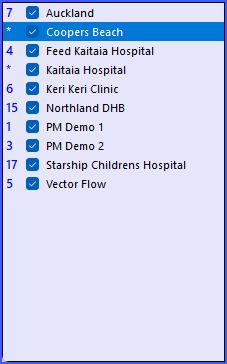
Postmasters List
First let's examine the Postmasters List. It may look like just a list of your Postmaster names but you can tell quite a bit just by looking at this list.
•The list is sorted alphabetically by Postmaster Name. You can change the Sort by Right Clicking any postmaster in the list!
•The check box will indicate whether the Postmaster is enabled or disabled.
•You will see next to each Postmaster Name either a Number (1 to 20) or an asterisk (*). This will tell you which CORE HL7 Postmaster Windows Service will run that Postmaster profile. 1 to 20 indicates primary service instance 1, 2, 3, etc. (we provide up to 20 main services), see Running as a Service.
•The asterisk (*) is something very special, it indicates that this Postmaster runs in a Private Service all by itself, See Private Services.
As you click on a Postmaster in the list you will see the Selected Postmaster details section update to reflect the currently selected Postmaster.
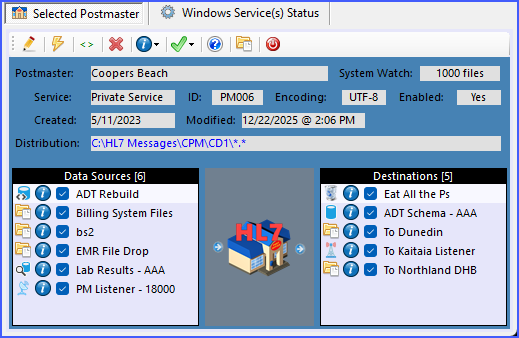
Postmaster Details
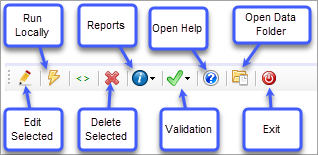
Postmaster Toolbar
Click on the  Windows Service(s) Status tab to see your Postmaster Windows Services. Private Services will always be on top followed by Primary Service Instances.
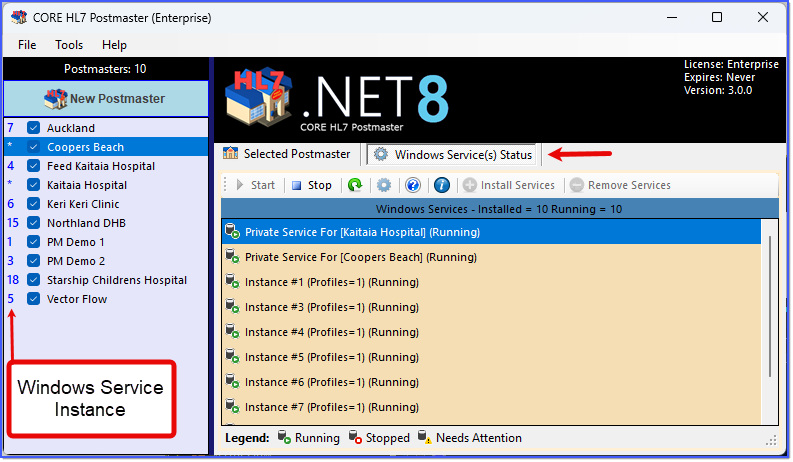
The Main Window Services Running
In the CORE HL7 Postmaster we provide 2 different types of Windows Services. There is the Private Service and there are up to 20 different Primary Services.
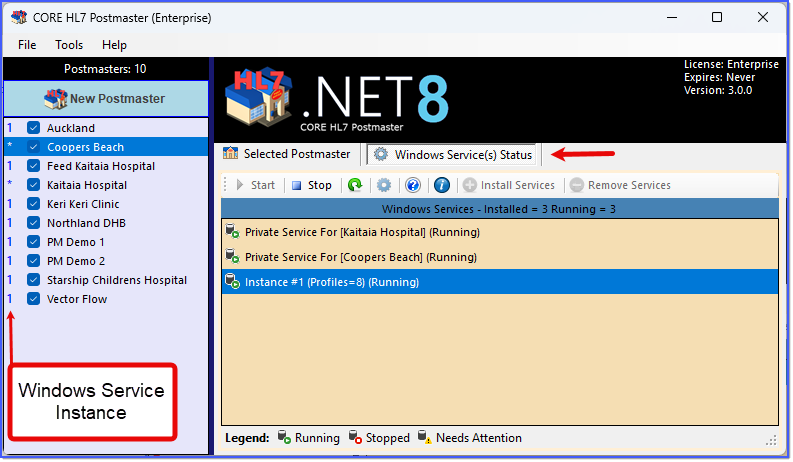
The Main Window 1 Primary Service Running
While a Private Service can only run 1 Postmaster, you can theoretically assign as many Postmasters as you like to a Primary Service Instance. There is right or wrong answer to which path you choose here as you create your Postmasters, it's all a matter of personal preference based on your HL7 mission(s). There are some important caveats to consider IF you have (or intend to have) many HL7 Postmasters, here are a few.
Adding a New Postmaster. If you ADD a new Postmaster and assign it to a Primary Service Instance which is Running you have to RESTART that Primary Instance in order for the service to "see" your new postmaster. While this interruption to your other Postmasters in that service will be very short, it will still be there. This is very easy to do, you can just Right Click on the Service Instance and use that menu to  STOP just that service and then
  START it again.
Editing an Existing Postmaster. This can be a little more tricky than adding a new Postmaster. If a Postmaster is currently running in a Windows Service you cannot edit it if you want to make changes without first STOPPING that service. That service has to stay STOPPED until you have finished editing the Postmaster then restarted so that the service can "see" your changes. This can be problematic if the Primary Service running your Postmaster is also running some other high value or high volume Postmaster(s) running HL7 interfaces which you cannot allow to be stopped for any length of time.
Testing and Troubleshooting. This scenario falls into the same category as editing a Postmaster. When troubleshooting problems you may have to edit and run your Postmaster several times, and you might want to Run your Postmaster Locally while doing this (which you CANNOT do if the Postmaster is running in a Service.
Too Many Windows Services. By allowing you up to 20 Primary Service Instances PLUS the ability to create the Private Services, you can theoretically create as many different Postmaster Windows Services as you like and use each one to only run a single Postmaster profile. There is a very important caveat here and we cannot define that for you because it will be based on the performance of the computer running the CORE HL7 Postmaster software. This has to do with the amount of time it takes to Start, Stop, and Refresh the Postmaster services (particularly the Refresh). Your Postmaster software will Refresh the Windows Service(s) Status a LOT, not just when you click the refresh button ( ) on the toolbar. Whenever you try to edit a Postmaster, Run Locally, Run a Report, even every time you switch to the Windows Service(s) Status tab in the main window. The more Postmaster services you have, the longer that operation will take, so you should limit the number to whatever your personal tolerance allows.
Solutions. None of this really matters unless you have (or plan to have) more than 20 Postmasters running. We have customers who run literally hundreds of Postmasters on a single server. As a general rule of thumb we don't recommend that you create more than 40 Postmaster windows services (20 Primary and up to 20 Private Services). If you are running 220 different Postmasters in this scenario you can have 20 in a private service and 200 evenly distributed amongst the 20 Primary Services. This way, in the event that you have to STOP a Primary Service it will only affect 10 of your customers. IMPORTANT NOTE: In the Tools menu on the main window there is an option:  Distribute Primary Service Profiles, you can click this menu item and the software will look at all of your existing Postmasters and evenly distribute them among the 20 Primary service instances (see screenshot below).
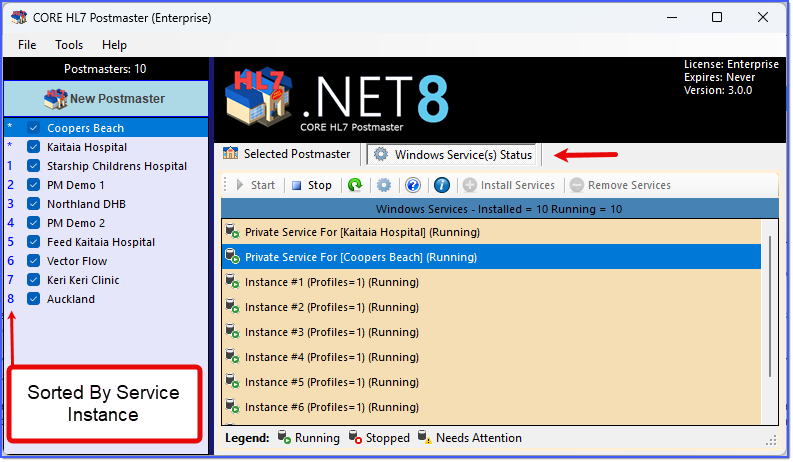
Primary Services Evenly Distributed
Use a Verify and Promote strategy with the Private Services. Whenever you need to create a new Postmaster, or troubleshoot an existing Postmaster, even if you just need to edit a Postmaster and you don't know how long that will take, assign it to a Private Service. Keep it assigned to the private service while you test and Verify that everything is working correctly and once that is done, you can Promote that Postmaster by removing the Private Service and assigning it into a Primary Service Instance at your leisure.
