CORE HL7 Postmaster

Created with the CORE HL7 API Libraries for .Net 8
The CORE HL7 Postmaster, in addition to the 20 primary MS Windows Services (see Running as a Service) also allows you to create Private Services which run separately and will only run 1 Postmaster profile.
Why would I need to do this?
Of course, your reasons are your own, we just want to give you the most flexible system that we can. There is theoretically nothing wrong with running ALL of your Postmaster profiles in a single service instance. That being said here are a few scenarios that we think might apply.
•You might want to always bring in NEW clients using a Private Service. This would allow you to run any testing or certification you need done in a separate space, allowing you to Stop, Start, Install, Remove, etc. WITHOUT impacting any of your other Postmaster interfaces running in other services.
•Troubleshooting problems. If a single Postmaster interface starts to "misbehave", you can "cut it from the herd" and assign it to a Private Service.
•Isolating High Value or High Traffic clients.
Creating a Private Service which will only run a SINGLE Postmaster profile is extremely easy to do. Just edit your Postmaster Profile and assign that profile to a Private Service.
STEP 1.
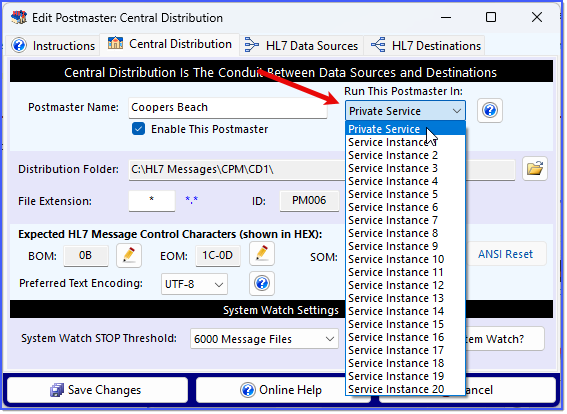
Private Services Step 1.
When you have completed your edits click the  Save Changes button.
STEP 2.
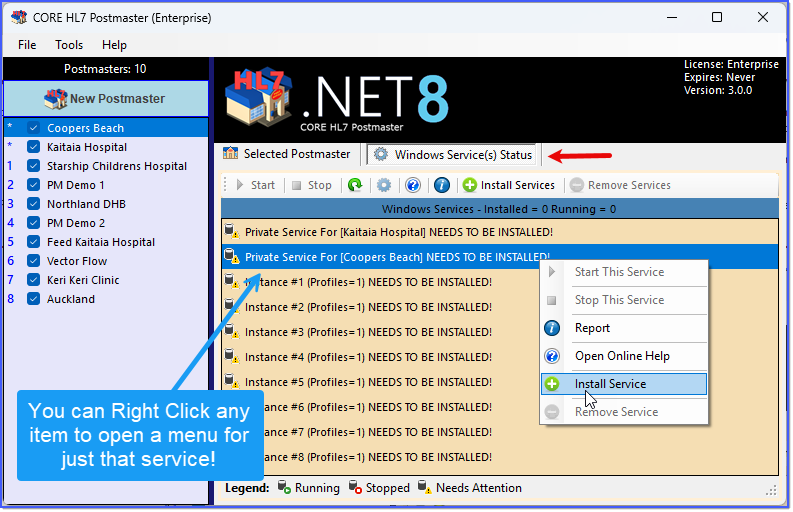
Private Services Step 2.
Back in the Main Window go to the  Windows Service(s) Status tab. You will see that you have a new entry under
  Private Services. for your Postmaster. Now all you have to do is INSTALL the service and then Start it.
STEP 3.
Now just start the service(s) either by clicking the  Start button on the toolbar OR Right Clicking on the new service and clicking Start in the menu, AND Voila!
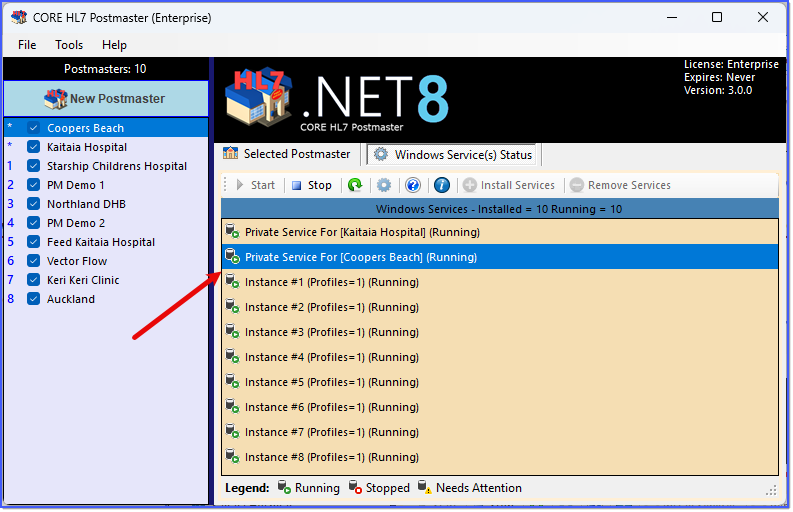
Private Services All Running.
That's how easy it is. You can create as many Private Services as you like, and remember that the same runtime rules apply to your Private Service(s) as applies to the Regular Services.
See Next: Things to Remember when running MS Windows Services.
