CORE HL7 Postmaster

Created with the CORE HL7 API Libraries for .Net 8
If your CORE HL7 Postmaster license allows it (See How Licenses Work) you can install and run the CORE HL7 Postmaster primary Windows Services. Just click on the  Windows Service(s) Status tab.
NOTE: If your CORE HL7 Postmaster license does NOT allow the MS Windows Services then none of the information below this line applies to you. See How Licenses Work, or Upgrading Your License.
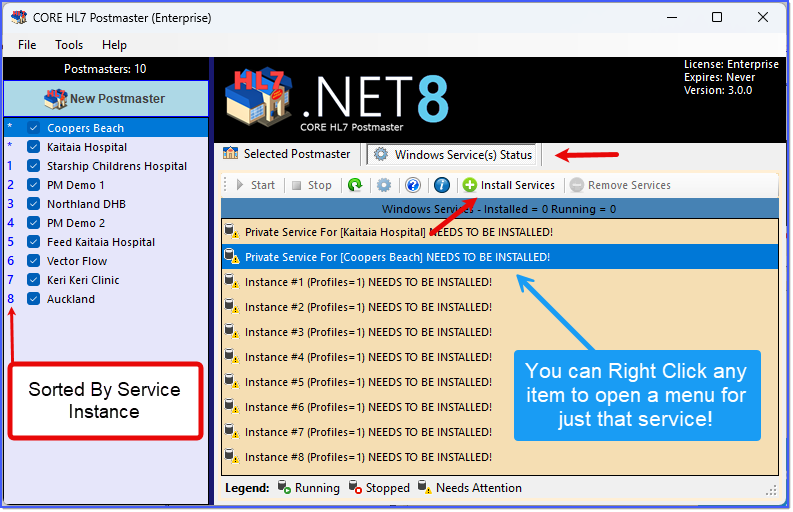
Running Services Example 1 (None Installed)
In the Example 1 screen shot we can see that there are multiple Service Instances, each of them have at least 1 enabled Postmaster assigned to them, none of which have been installed. There are 2 ways to solve this problem so let's go over the Toolbar and the Right Click menu options.
In the Toolbar the buttons you can see will affect ALL of the Windows Services (even Private Services). This means that in the Example 1 screenshot if you were to click the  Install Services button, a routine would run which would attempt to install every Postmaster service which NEEDS to be installed (in the Example 1 screenshot that is all 3 primary services). Likewise, the
  Start button and the
  Stop button (if enabled) would also START any service not started that CAN be started, or STOP any service that is running and can be stopped.
You can also RIGHT-CLICK on any list item you can see in the services list and get a separate menu which will ONLY affect that particular service. So you could RIGHT-CLICK on Service Instance 3 and click Install Service in the pop-up menu and it would run a routine that would ONLY install Service Instance 1. Same with Start, Stop, etc.
You will note that in both the Toolbar AND the Right-Click pop-up menu different items will be enabled or disabled based on whether they are applicable or can be used. For instance in the Example 1 screenshot you can see that both the Start button and the Stop button, as well as the  Remove Services button, are DISABLED. This is because none of the Services have yet been installed in the Windows services list so they cannot be started, stopped, or removed.
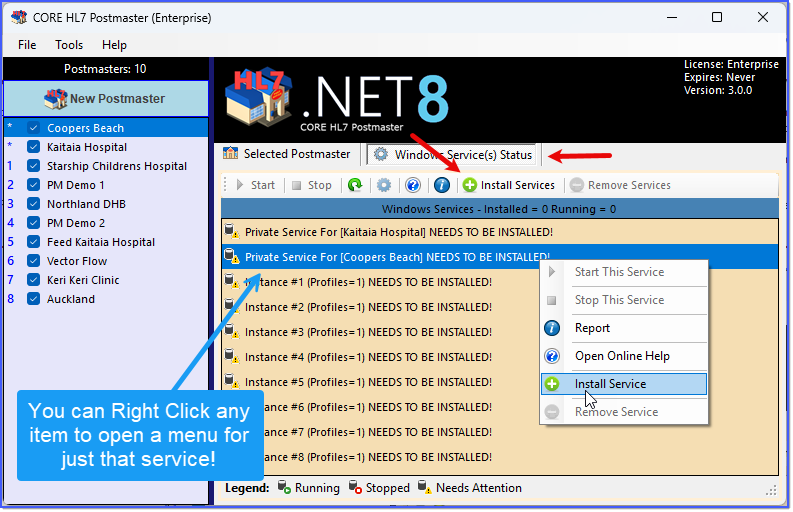
Running Services Example 2 (All Need Attention)
In the Example 2 screen shot we can see that there are is a Private Service which has not been installed. You click Install Service in the Right Click menu to install JUST that service. To install ALL Services that need installing click the Install Services button on the toolbar. In the Postmasters list on the left of the Main Window you can tell which Postmaster profiles are assigned to which service.
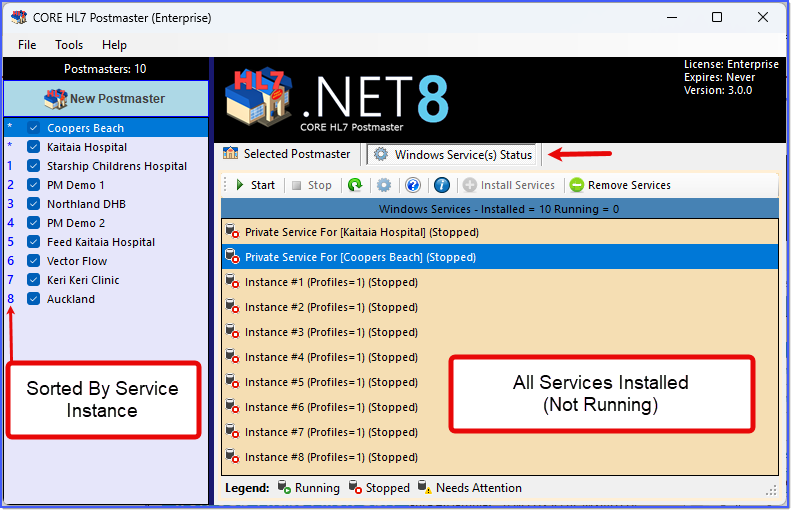
Running Services Example 2 (All Installed)
Here you can see the  Start and Stop button on the Toolbar. If enabled the Start button when clicked will start ANY service which is installed and is NOT running. Likewise, the Stop button if enabled when clicked would attempt to STOP all running services. Also you can RIGHT-CLICK on any of the services to open a menu for that particular service. See Example 2a screenshot below.
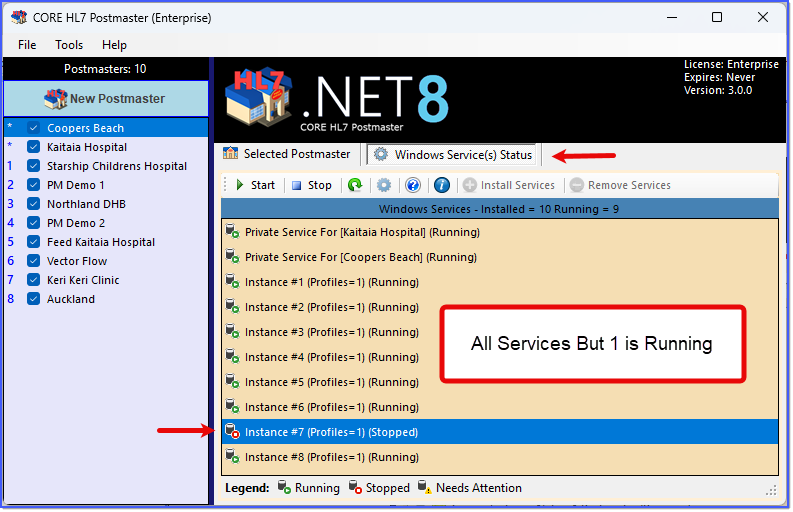
Running Services Example 2a (1 Stopped)
In the Example 2a screenshot above you can see that we have stopped ONLY service instance 7, while leaving all others running. All you have to do here is RIGHT CLICK on Service Instance 7 and click Start.
Running as a MS Windows Service is how any live Production environment would need to be run. With the many Windows services you get fault tolerance, and the ability to have the Services start on Power Up. If you only Run Locally you must be logged into Windows and running the configuration program.
See Next: Things to Remember when running MS Windows Services, How Primary Services Work.
