Schema Training in a Nutshell
When your Database Schema was created we used a HL7 Definition to determine which SQL Tables to create and which columns to put in those tables.
Schema Training simply means that when you import HL7 messages into your Schema Tables the software needs to ensure that every possible bit of atomic data is directly addressable by you. Every HL7 Segment in the message MUST have a Segment Table(s). Every HL7 Component of every HL7 Field in that HL7 Segment MUST have a database column to go into.
In order to accomplish this the CORE HL7 SQL Schema Engine will make dynamic changes to your Schema Database (HL7 Training), altering tables to make columns larger (to avoid data truncation), adding new database columns to tables (if the message unexpectedly contains a new HL7 Field or Component), and even creating NEW Schema tables if needed.
IMPORTANT NOTE: This obviously means that whatever SQL Server credentials you use in your Schema Profile, they MUST have full rights to the database. You don't have to use but the credentials MUST have full rights otherwise.
Training occurs in Training Cycles and it may take more than 1 Training Cycle to correct any issues. When a HL7 message is imported OR you go through the Schema Training method the CORE HL7 Schema Engine will examine the HL7 Message(s) evaluated to look at three factors in order:
1.Missing Tables. For every HL7 Segment in the message, is there a corresponding Segment Data Table? If not it generates SQL Statements to create any missing tables, executes those statements, and that completes a cycle.
2.Missing Columns. For every component in every field of every segment in the message is there a corresponding data column in the Segment Data Table? If not it generates SQL Statements to create any missing data columns, executes those statements, and that completes a cycle.
3.Truncation Issues. It looks at the individual actual VALUE of every component and determines if the LENGTH of that value is GREATER THAN the Varchar column size of the corresponding data column the Segment Data Table. If not it generates SQL Statements to ALTER the table and increase the column sizes, executes those statements, and that completes a cycle. NOTE: Here there is an algorithm used which is to always add FIVE (5) to the new altered column size and if the NEW size is > 512 the column size is altered to LongText. Example: A data column is a Varchar(10), we discover a component value of "0123456789ABCBDE" (16 characters), this would trigger a training event to alter the column and increase it from a Varchar(10) to a Varchar(21), 5 characters longer than the data discovered.
Since it evaluates the 3 conditions in order it should never take more than 3 training cycles on a single message to completely update your Database Schema to be able to import the source message with no errors. This is because we designed Training Cycles to avoid conflicts with each other in the processing order. Consider the above, if there are Missing Tables (#1) that Training Cycle will ONLY create any missing tables and then refresh the Schema Info it will not evaluate for missing columns. If there are no missing tables but there are Missing Columns (#2) that Training Cycle will ONLY create any missing columns and then refresh the Schema Info. It is ONLY if #1 does nothing, and #2 does nothing, that #3 is evaluated.
|
When you create your HL7 database schema tables we use the HL7 Vendor Definition (which is just an object containing information about a particular version of HL7) you selected when creating your Schema Profile to determine which tables to create and what the database columns are which make up those tables. The software sizes the columns using the Default Column Size you selected in your Schema Profile. We do this because HL7.org is notoriously vague in the official documentation about this. For instance it might say that the Patient Name field (PID segment field #5) should accommodate 180 characters, but Field 5 of the PID segment is a HL7 Data Type XPN which can have from 7 to 15 different components (columns) depending on which version of HL7 you're using and there's not really any standard guidance on how to size the individual pieces that make up the field. For instance, the Last Name (Surname) which is component #1 should certainly be larger than the Suffix (Jr, Sr, etc) component.
Add to this, the issue of unknown or undefined fields and components as well as custom "Z" segments and for clients with less than reliable trading partners who don't adhere strictly to the HL7 standards and the problems only compound. Schema Training is finally the answer to all of this.
|
While Schema Training occurs automatically at runtime as you import HL7 messages into your database, it is also possible to run Schema Training "manually" by clicking the  button on the Main Window toolbar to open the Schema Database Training window.
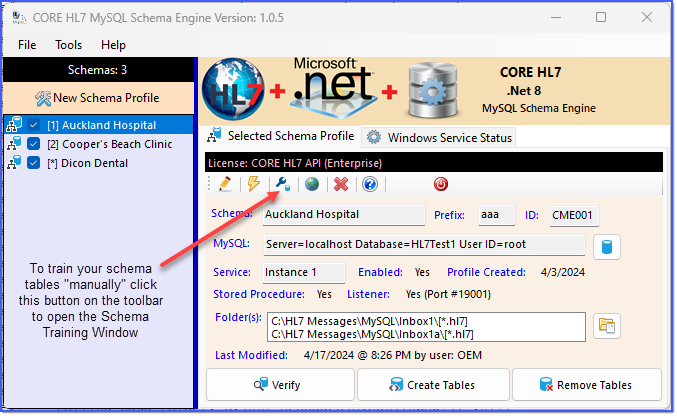
Schema Training (Manual)
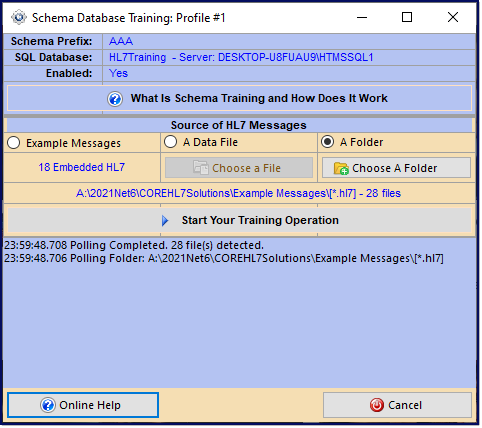
Schema Training (Manual)
In this window you can choose to train your Schema Tables using either:
•Example HL7 Messages embedded in the application.
•A single HL7 data file of your own which can contain one OR many HL7 messages.
•A data folder which can contain many HL7 data files, each of which can contain one OR many HL7 messages.
Just click Start Your Training Operation and watch the results.
The Schema Engine also keeps track of all changes made to your database whether through "manual" training or dynamic changes made when importing HL7 messages into your database. You select records from your <>_MessageErrors table. All records in this table where the MessageID Column = "SchemaTraining()" will contain the actual MySQL statement executed in the ErrorMessage column.
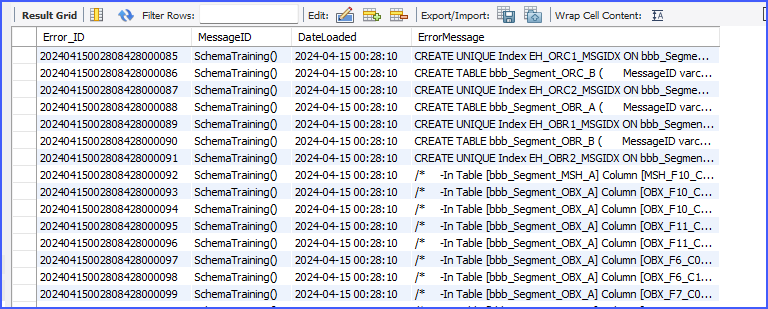
Schema Training Archive
It is a fact that HL7 is massive, and nobody uses all of it. Many people might go their entire careers in medical information systems and only actually deal with fewer than a dozen different HL7 segments. What we recommend that customers do who have very specific HL7 needs is that when creating your schema profile you choose the Truncated22 HL7 definition (See HL7 Definitions). This way when you create your schema tables we will create very few in your database, only 5 to be precise. If you choose any of the other HL7 Definitions (Default23, or Default251) then we will create MANY schema tables in your database that you will likely never use.
Once you have created this "bare bones" HL7 Database Schema you can then focus on using Schema Training to mold that truncated schema into a schema that is truly customized just for you! You do this by assembling a test bed of example HL7 messages that best represent the actual types of messages that YOU need to support. You can then use the Manual training features described above to train your schema, adding only tables and columns that represent YOUR messages.
Using this manual training method also allows you to see exactly what your final database schema will look like and allow you to create your own implementation for getting the HL7 data OUT of our schema tables and imported into YOUR database tables.
|
See Also: Database Training Demonstration In our YouTube Video. While it shows the CORE HL7 MS SQL Schema Engine, the principles are the same.