NOTE: If you have a DEMO or Developer license this topic does not apply to you as you cannot install or run the MS Windows Services and must only Run Locally.

Running Windows Services
CORE HL7 MySQL Schema Engine Windows Services:
In this software, as we do with almost all of our commercial HL7 software products, we provide the client with 4 MS Windows services. The services all perform identically and there is no particular need to favor one over the other. As you create schema profiles you will notice in the footer the area where you assign that schema profile to a windows service (see screenshot below).

Form Footer of the Schema Profile Window
You can create multiple schema profiles assigned to the same service or you can assign all of your schema profiles to the SAME service and only have to manage one Windows service.
There are several very important things to keep in mind when running the Schema Engine MS Windows Services. Most of them have to do with HOW Microsoft Windows Service applications run and the different user security configurations possible in the different MS Windows operating systems. You see, MS Windows Services are run in their own memory space by the operating system and usually under a different 'User' context than your own Windows/Network User ID. This can sometimes create confusion and might cause some conflicts which are not readily apparent. If you do have issues the symptoms are usually that everything runs fine when running locally BUT do not work when running as a service.
oInstalling or Removing the Schema Engine services. When performing either of these actions you MUST be logged into Windows with a User ID with sufficient 'security' rights to allow this. If you try to install or remove the services and the action fails contact your system administrator for assistance.
Installing Or Removing the Windows Services:

Click the Install Services Button
To install the services just click the Install Services button. To remove the services click the Remove Services button. Neither of these buttons will be enabled unless they CAN be clicked. For instance, if you have no services that have been installed, the Remove Services button will be disabled. If all services that need to be installed have been, the Install Services button will be disabled. If your Windows services are running both buttons will be disabled.
Right Click Any Item in the Services Display
You can RIGHT click on any service in the service display to see the popup menu which will allow you to:
•Start the Service
•Stop the Service
•Install the Service
•Remove the Service
•Show a Service Report
IF you try to install or remove your services and it fails for some reason (typically because you are not logged into the computer as a user with sufficient rights) you can open a Services Report (the  button on the RIGHT click menu) and it will show the necessary Windows commands to install / remove each windows services.
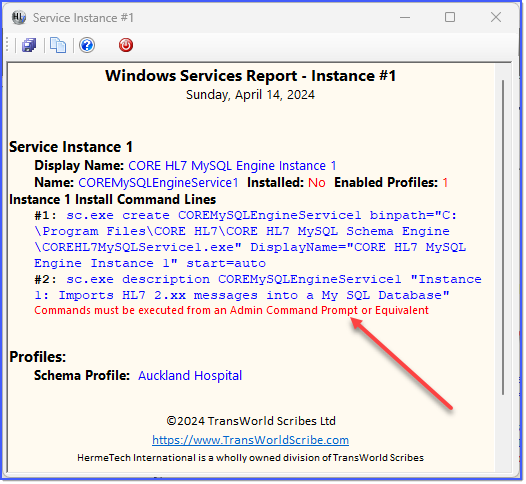
Services Report