After you have created a script you are ready to run it interactively for testing. If your script is a Type 3 (Listener) script see Run Listener Simulation. To run a script just click the  button on the main window toolbar.
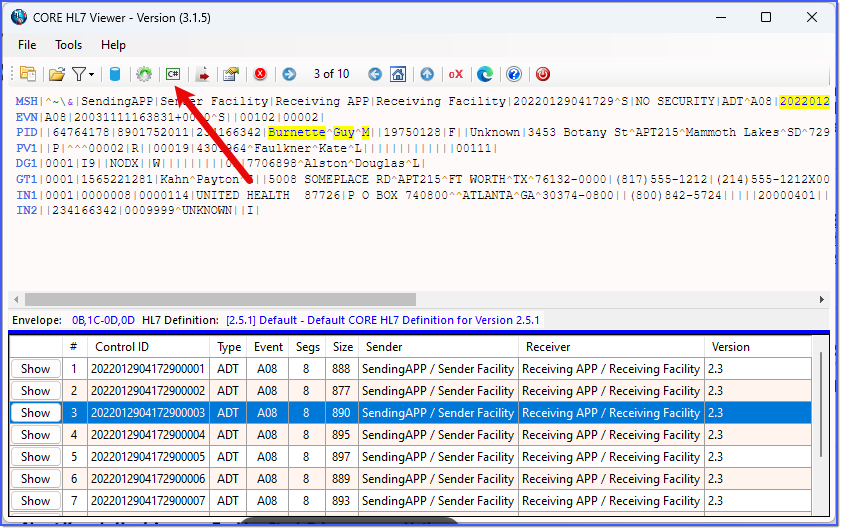
Create and Run custom scripts you write in c#!
If your script is Type 1 you need to load the appropriate HL7 messages for testing into your CORE HL7 Viewer before you open the Script Runtime window.
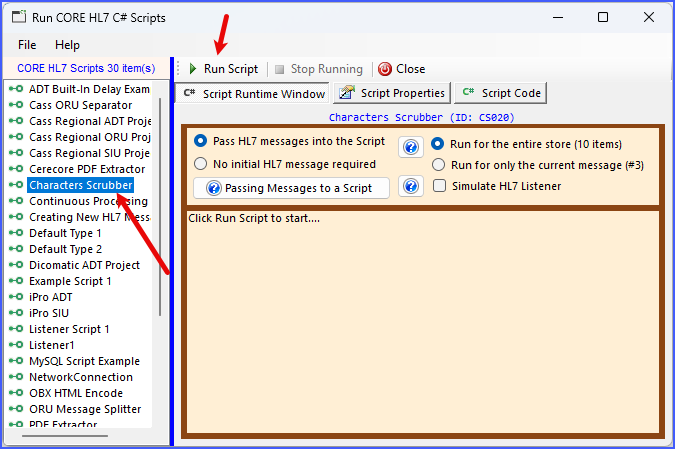
Running Your Script
In the Script Runtime Window you just select which script from your Script Library you want to run and click the Run Script button. Your script will run through to completion executing ONCE for each HL7 message you indicated. If your script is a Type 2 script make sure you check the No Initial HL7 message required box. If your script is a Type 3 script make sure you check the Simulate HL7 Listener box (see Listener Simulations).
Once your script has completed running (or been canceled by you) the Runtime Results window will appear.
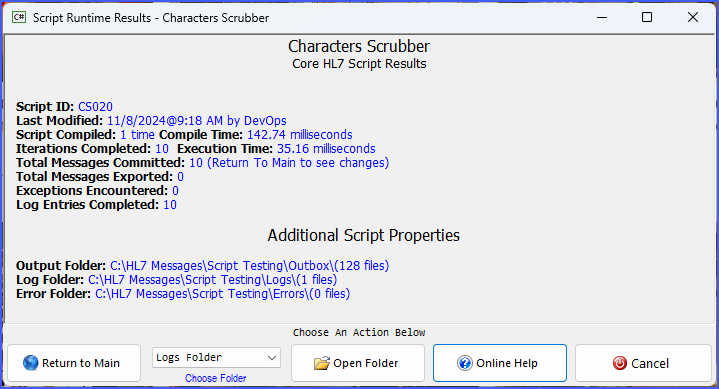
Runtime Results
Examine this window closely because it gives you a LOT of information about what happened when your script ran. It will tell you how long it took to compile your script, how many iterations were completed, and the total execution time for all of those iterations. In the results screenshot above you can see that it took 35.16 milliseconds to compile the script (this is only done ONCE), then there were 10 iterations (once for each HL7 message loaded in the viewer), and these 10 iterations took a total of 35.16 milliseconds to run. That's VERY fast, 3.5 milliseconds per iteration!
From this window you can also open any of the Script Folders which you have set when creating your script (see Script Folders). Just select which folder you want to open and click the Open Folder button.
Once you are done reviewing this window you have 2 options. If you choose Cancel (or just close the window) you will go back to the Runtime window where you can see all of the TraceLog entries your script made during execution.
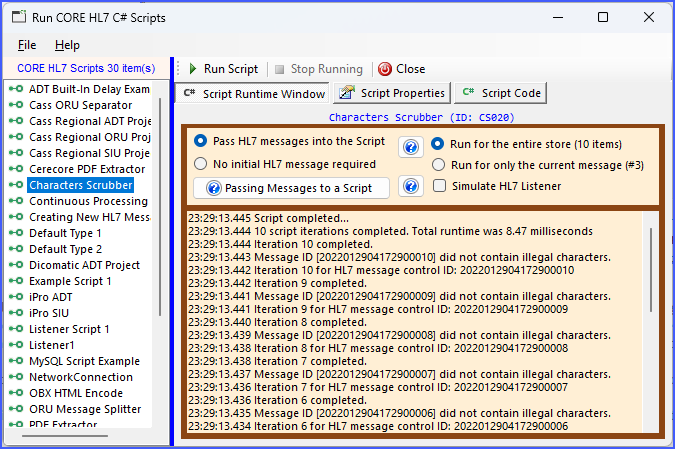
Runtime Results
Runtime Results
If you choose Return To Main you will be taken back to the Main Window where, IF your script modified the HL7 message(s), you can see that your Message Store has been modified and now contains the modified messages.
