
Open A CORE SQL Connector
In the main window click  to open your SQL Connectors.

Choose Your SQL Database Connector
Choose or (or create) a SQL Connector to open the SQL Query window to see a blank query.

Blank Query Window
Creating A Query (3 Minutes)

Completed Query - Ready To Execute
When you have filled out the query parameters you want click the Execute button and your query will be submitted. IF there are any records returned then one of two things will happen.
IF you have checked the Display Results in Navigator box you will be take to the Database Navigator Window. If you have NOT checked the Display Results in Navigator box your query results will show up in the Query Results tab for you to import them into your message store. See Adding Messages to Your Store.
Scenario: You are in SQL Server Management Studio and you find a single message which you want to bring up in your CORE HL7 Viewer. Follow these steps:
1. In SQL Server copy the MessageID field to the clipboard.
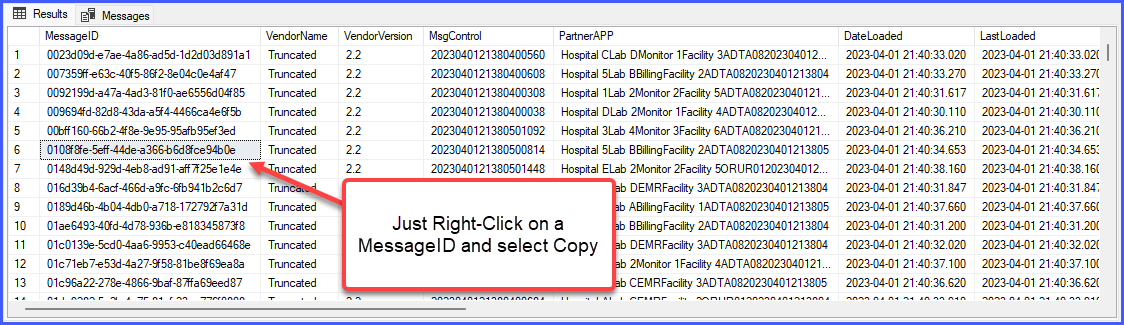 SQL Management Studio Query
2. In your CORE HL7 Viewer Open a new query window and check the Specific Message ID (GUID) box, then click the Clipboard Paste button indicated in the screen-shot below followed by the Execute button.
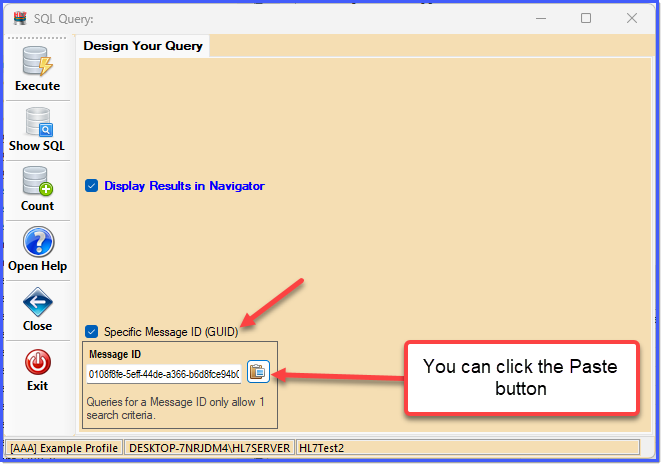 SQL Management Studio Query
You will note how every other checkbox and filter becomes invisible when you check the Specific Message ID (GUID) box, leaving only the Display Results in Navigator checkbox. This is because when you query for a single message, all other filters become moot since your query result will always be either 1 record (the message associated with the GUID) or 0 records (if the Message ID you entered is not valid).
|


