
Using the Database Navigator Window (2.5 minutes)
When you execute your query and you have indicated that you want to "Display Results in Navigator" the CORE HL7 Database Schema Navigator window will open displaying all of the HL7 messages returned by your query.

The Database Navigator Window
The first thing you will notice about this window is that it is VERY similar to the Main Window. It is in fact a clone of that window, but what is important to know are the key differences between this window and the Main Window.
The first major difference is the Messages List which contains a different data set. In the Main Window the messages list contains more "message" related information while in the Navigator window it will contain more "database" related information. See below.
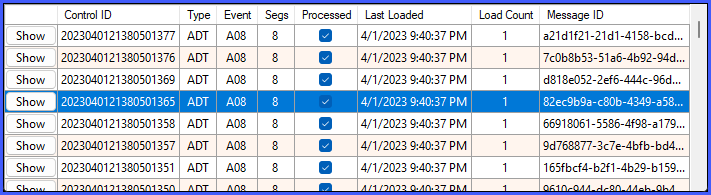
The Database Navigator Messages List

The Main Window Messages List
The next major difference you will notice is that there is no Tools menu at all, and there are some buttons missing from the Toolbar and some new buttons added.
What's missing:
• Open HL7 File
• Viewer Settings
• Clear the Store
• Hex View
What's new (or works differently) in the Navigator Window:
• Shows a set of SQL Select scripts related to the selected message
• Close the Navigator Window and return to the prior window.
• This button still means to completely exit the application
