
Scenario: I have a CORE HL7 IPSec Tunnel Listener on Computer1 listening on Port 9000. Computer2 is 1000 miles away on a different network and needs to send me HL7 messages using the CORE HL7 IPSec Client Sender. What do I need to do to ensure connectivity over the internet without requiring a VPN?
To ensure successful communication between Computer1 and Computer2 over the encrypted IPSec tunnel on Port 9000, consider the following firewall and hardware router configurations:
1. Firewall Configuration:
• Allow inbound and outbound traffic on Port 9000 for both TCP and UDP protocols.
• Ensure that the firewall rules are configured to allow traffic between the IP addresses of Computer1 and Computer2.
 NOTE: For the IPSec Tunnel Listener on Computer1. When setting up Firewall rules and exceptions you will want to just Allow the connection on Port (9000 in this example). Do NOT choose any of the options such as "Allow the connection if it is secure". See the example screenshot below which is from a Windows 11 computer using Windows Defender Firewall.
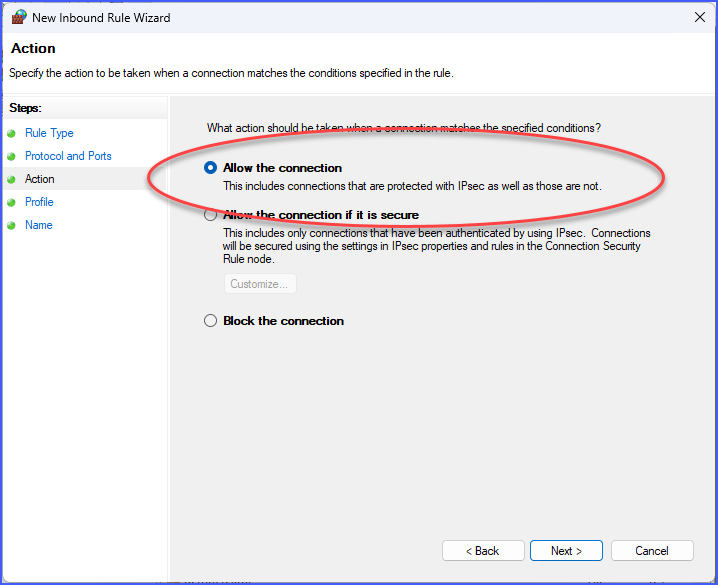
Example: Windows 11 Defender Firewall
But WHY? If it is truly an IPSec encrypted tunnel wouldn't I choose Allow the connection if it is secure? The answer has to do with our implementation of the X509 certificate and that we allow you to use "self-signed" certificates, either ours, or yours. The result is that if you check Allow the connection if it is secure, Windows will try and validate the X509 certificate and it will fail their validation. You can rest completely assured that all traffic coming in to port (9000 in our example) IS ENCRYPTED and any incoming traffic which is NOT encrypted will be rejected outright by the Tunnel Listener on Computer1. You are more than welcome to verify this yourself using any number of 3rd party "port sniffing" software like WireShark etc to "watch" the outbound traffic being sent by the CORE HL7 IPSec Client software.
2. Hardware Router Configuration:
• Set up port forwarding or virtual server settings on the hardware router to forward incoming traffic on Port 9000 to the local IP address of Computer1.
•If necessary create an Outbound TCP rule on Computer2 to allow traffic on Port (9000 in our example) out to the internet.
• If your application uses a specific range of IP addresses for the IPSec tunnel, ensure that the hardware router allows traffic between those IP addresses.
• If your application relies on Network Address Translation (NAT) traversal, enable appropriate settings on the router to allow IPSec traffic to pass through without interference.
3. Considerations for Dynamic IP Addresses:
• If the IP address of Computer1 is dynamically assigned, you may need to use Dynamic DNS (DDNS) services to ensure proper connectivity. DDNS allows you to assign a domain name to a dynamic IP address, so the tunnel can still function even if the IP addresses change. If the IPSec Sender on Computer2 is within your own LAN or WAN they can then use the DNS Host Lookup property in their IPSec Sender Profile (see Creating Profiles).
It's important to note that the exact steps to configure firewalls and hardware routers can vary depending on the specific models and brands in use. Therefore, it's recommended to consult the documentation provided by the respective manufacturers or seek assistance from their technical support teams for detailed instructions tailored to the specific devices in question.
See Also: Creating Sender Profiles, How the IPSec Tunnel Works