Coming in Version 3.5
A self-signed certificate is a SSL/TLS certificate that is created and signed by the system or organization using it, rather than by a public Certificate Authority (CA). These certificates still provide encryption and can securely protect HL7 traffic, but they are not automatically trusted by other computers or applications. Because of this, the receiving system usually must manually trust the certificate by importing it or approving its thumbprint before secure communication can occur.
Certificates issued by trusted Certificate Authorities such as DigiCert or Sectigo are different because they are signed by organizations that are already trusted by Windows, browsers, and most operating systems. This allows systems to automatically verify the identity of the remote server without manual configuration. Self-signed certificates are commonly used for internal systems, testing, or private healthcare networks, while CA-issued certificates are more common for public-facing or cross-organization integrations where automatic trust and simpler deployment are important.
The CORE HL7 Sender 'Default' Certificate
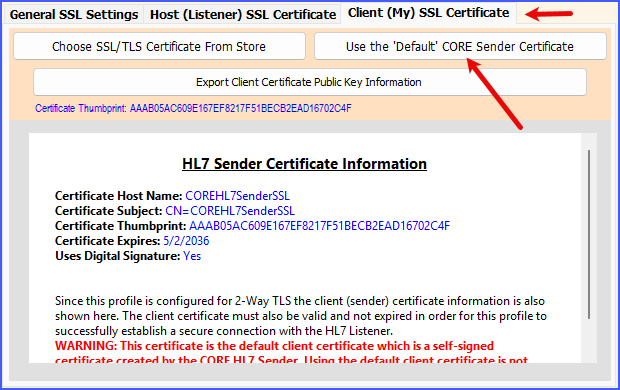
SSL / TLS Settings (Bidirectional)
Your CORE HL7 TCP/IP Sender creates one of these self-signed certificates valid for 10 years when you install and start it for the first time. This certificate is stored in a file named COREHL7SenderSSL.pfx in the SSL\CORESender\ sub-folder of the installation folder. If you delete this file the software just creates another one the next time the program starts. This certificate is exactly the same type of certificate as those created by "Trusted" certificate authorities with exactly the same encryption capabilities. It is this certificate that your CORE HL7 TCP/IP Sender uses when you click the Use the 'Default' CORE Sender Certificate button in the Client (My) SSL Certificate tab.
Creating Your Own Self-Signed Certificate
From the Main Window in the Tools menu you will see a menu item  SSL Utilities. Click that and it will show you a sub menu item
  Create Your Own SSL/TLS Certificate. Click that to open the Create a Certificate Window.
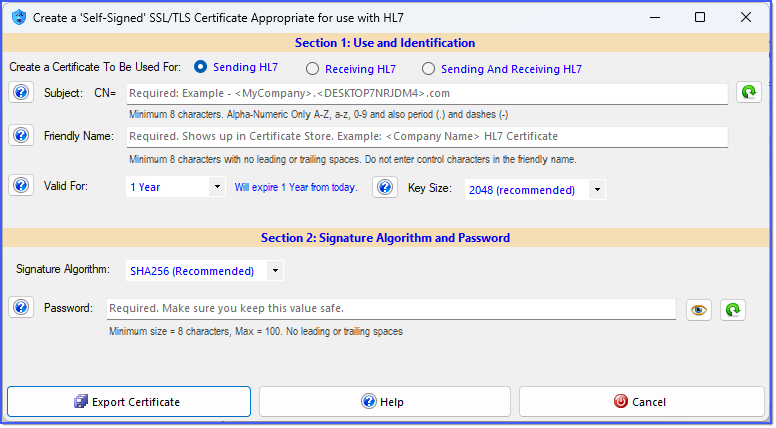
Create a Self-Signed Certificate (Empty)
Just fill out this form with the certificate information you want. Everywhere you see a  button you can click it to see some quick help or hints. If you see a
  button you can click it to help generate a value for that field. Below is an example of a completed form.
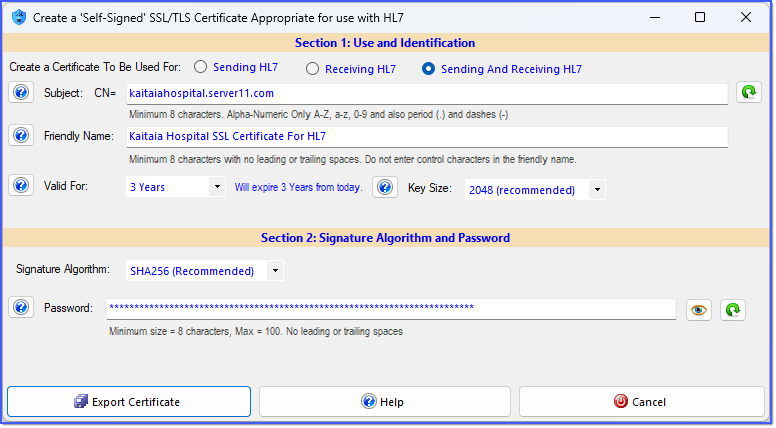
Create a Self-Signed Certificate (Filled Out)

Once you have completed the form click the  Export Certificate button to create the PFX file. Once created you will see a message that will tell you that your PASSWORD has been copied to the Windows Clipboard. You should paste that into some type of document and save it in a safe place.
 OK, I have completed the form and exported my certificate to a PFX file and I have saved the password somewhere safe. Now how do I use it?
Answer: In the CORE HL7 products which use SSL/TLS for encryption (like the CORE HL7 Sender and the CORE HL7 Listener) we create a 'Default' self-signed certificate as described above. In order to use any self-signed certificate that you create you have to IMPORT that certificate into the Windows Certificate store for the local machine. To do this you may need to be an Administrator, but typically all you have to do is double click on the PFX file in Windows File Explorer to open the Certificate Import Wizard.
IMPORTANT NOTE: You actually have to import the certificate TWICE. On the first pass you can just click Next, Next, Next and follow the prompts.
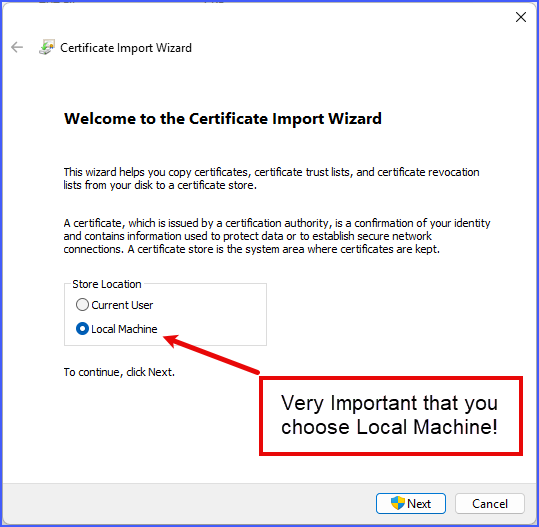
Importing a Certificate Into the Store
AFTER you have completed the first pass and imported the certificate into the Personal Certificate store you have to import it AGAIN and place it into the Trusted Root Certification Authorities store.
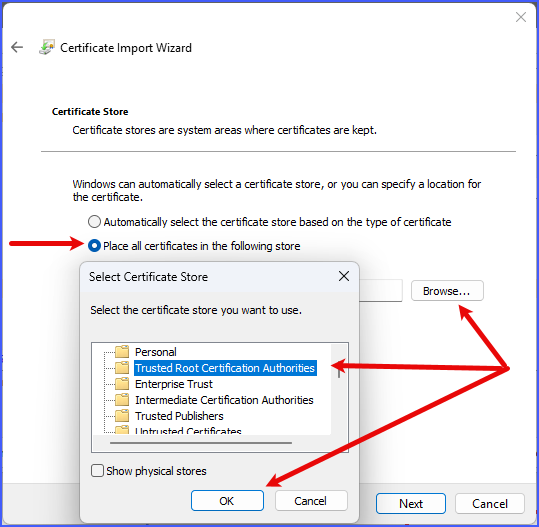
Importing a Certificate Into Trusted Store
To import correctly on the 2nd pass when you get to the screen shown above do the following:
•Check Place all certificates in the following store.
•Click the Browse... button.
•In Select Certificate Store dialog select Trusted Root Certification Authorities.
•Click OK and then just follow the prompts to finish the import
Since your certificate was imported for the Local Machine AND was also imported as a Trusted Root Certificate this means that for the CORE HL7 Sender IF you checked that your certificate would be used for Sending HL7 OR Sending and Receiving HL7 you should now be able to choose your new certificate by clicking the Choose SSL/TLS Certificate From Store button as shown below.
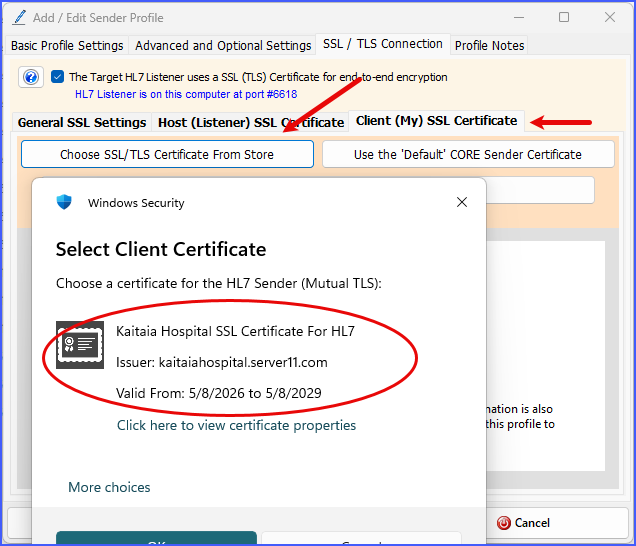
Choosing Your New Certificate
