Yes—there’s a real benefit, but it depends on your environment.
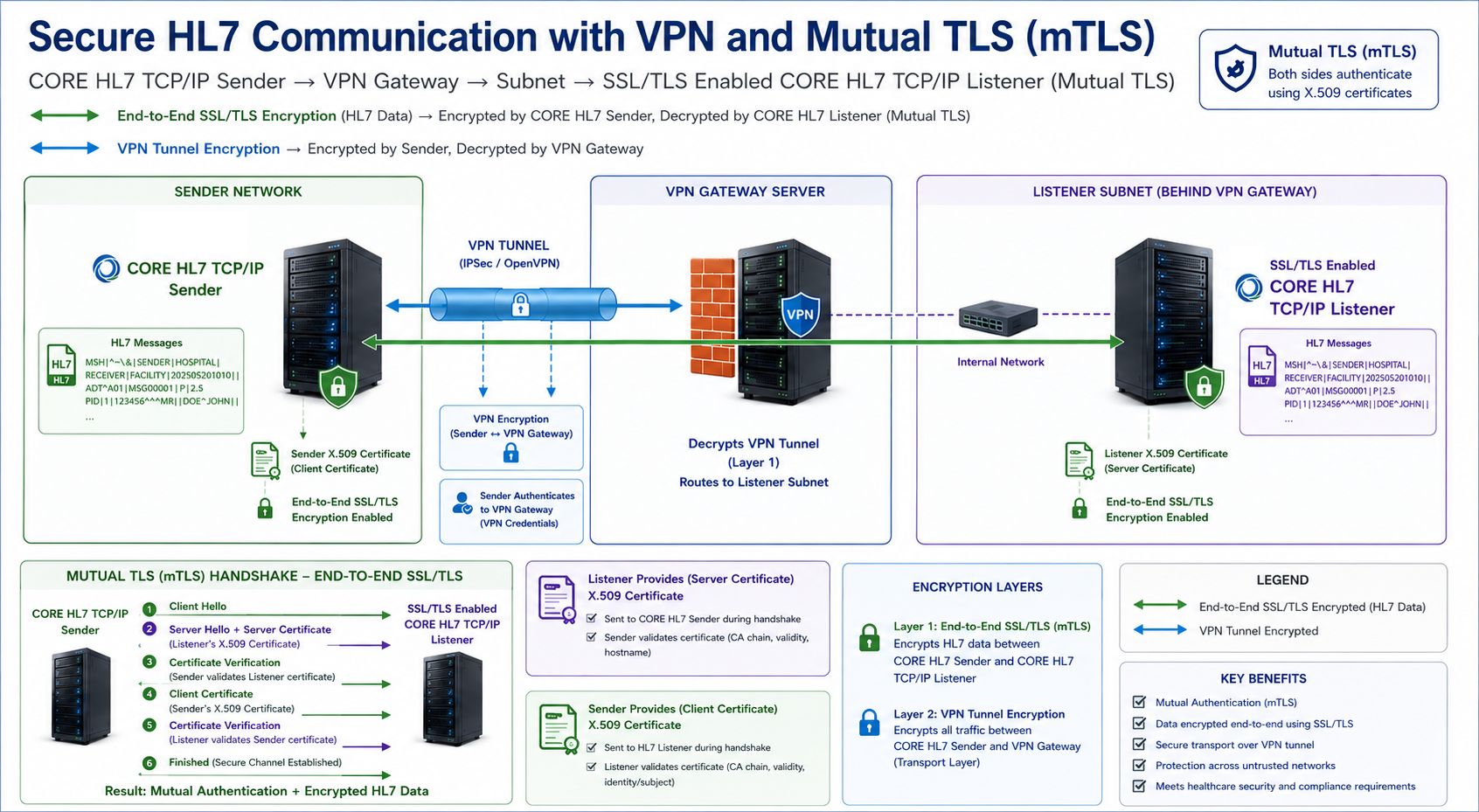
With standard (one-way) TLS, only the server (Listener) proves its identity, and the connection is encrypted. With two-way TLS (mutual TLS), both the HL7 Sender and Listener present certificates and verify each other. That gives you strong, built-in authentication: the Listener knows exactly which sender is connecting (not just an IP or username), and unauthorized systems can’t connect even if they reach the port. It also reduces reliance on application-level credentials and helps prevent spoofing or misrouted connections.
The trade-off is complexity. You have to issue, exchange, and manage certificates (including renewal and revocation) on both sides, which adds operational overhead. For many internal or lower-risk integrations, one-way TLS is sufficient. But for healthcare environments with stricter security requirements (external connections, multi-tenant systems, or compliance-driven setups), two-way TLS is often worth it because it provides strong identity verification in addition to encryption.
SSL / TLS Settings Enable Bidirectional SSL
While the image above shows the sender as being the CORE HL7 TCP/IP Sender, anyHL7 TCP/IP Sender which implements the global TCP/IP Standard for sending SSL/TLS encrypted data should work.
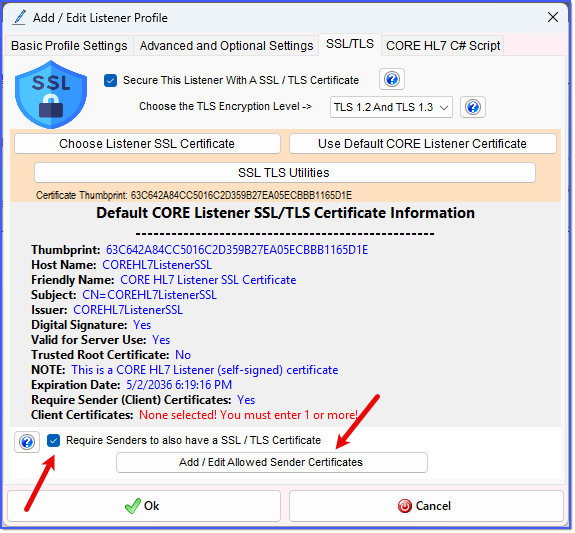
SSL / TLS Settings Enable Bidirectional SSL
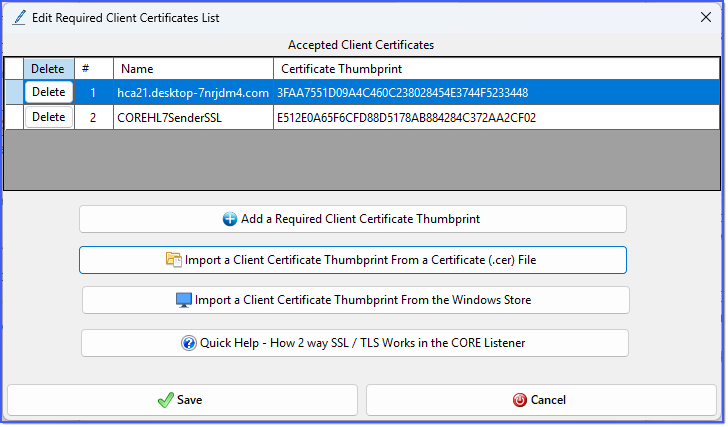
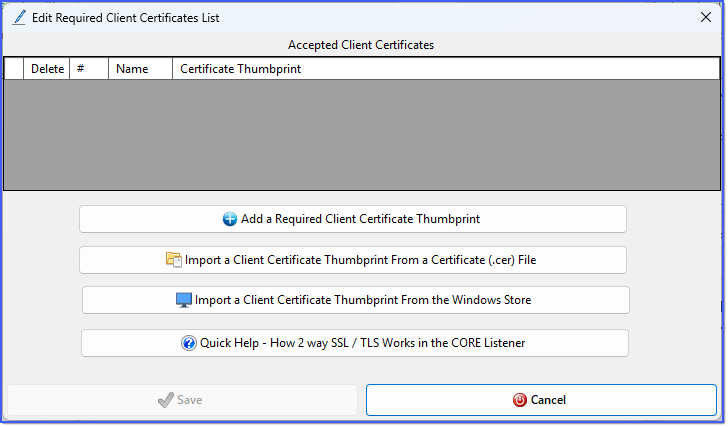
To enable bidirectional SSL just check the Require Senders to also have a SSL / TLS Certificate box. You will see the Add / Edit Allowed Sender Certificates button appear. Click it to open the Edit Required Client Certificates List window.
For each client certificate you want to allow to send to your secure listener we need 2 pieces of information from your client (the HL7 Sender). They are the certificate THUMBPRINT (absolutely required) and the certificate HostName (required but can be wrong). You will have to coordinate with the Client (HL7 Sender) to provide you with this.
The easiest way for YOU is if they just send you (email is fine for this) their certificate Public Key information in a .CER (or .PEM) file. If they cannot do this then an email with the certificate THUMBPRINT would suffice in a pinch.
IF the HL7 Sender is actually part of your organization and their certificate is actually in your Certificate Store you can Import a Client Certificate Thumbprint From the Windows Store. This is very unlikely to be feasible unless the HL7 Sender is actually on the same computer as the HL7 Listener.
In this window there are 3 main buttons.
1.Add a Required Client Certificate Thumbprint. Click this button if ALL that you have is their Certificate Thumbprint (and hopefully the HostName). You will be prompted first to enter the Thumbprint. We will do some basic validation of what you enter here but we cannot account for any typos, etc. Next you will be prompted to enter the Certificate Hostname (if known or other short name).
2.Import a Client Certificate Thumbprint From a Certificate (.cer) File. Click this button if you have been given the Public Key information of the HL7 Sender's certificate in either a .CER file or a .PEM file. You will be prompted to OPEN the file.
3.Import a Client Certificate Thumbprint From the Windows Store. Click this button the Certificate being used by the HL7 Sender is in the Trusted Certificates on THIS computer. This is very unlikely unless the HL7 Sender is running on the same computer.
Once done you will see the row in the Accepted Client Certificates list and the Save button will be enabled.
Allowed Client Certificates (2 Entries)
Click Save and you are done!
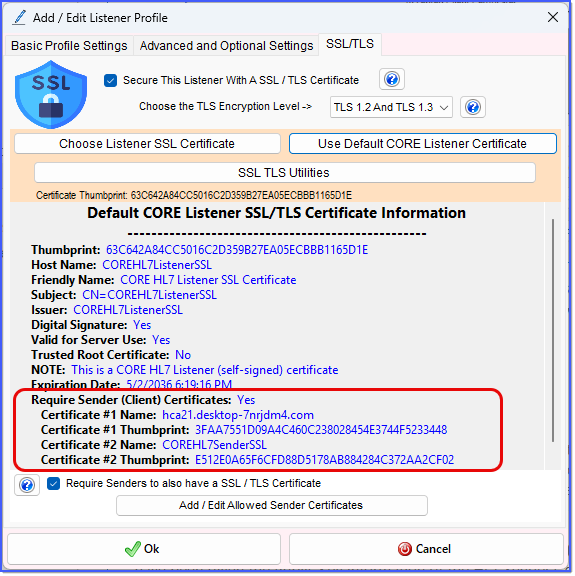
Bidirectional SSL Enabled
REMEMBER: Once you implement this bidirectional SSL then NO HL7 sender can connect and send you HL7 messages UNLESS they actually present a certificate to YOUR Listener which has a THUMBPRINT in your Allowed Thumbprints list.

 Add a Required Client Certificate Thumbprint. Click this button if ALL that you have is their Certificate Thumbprint (and hopefully the HostName). You will be prompted first to enter the Thumbprint. We will do some basic validation of what you enter here but we cannot account for any typos, etc. Next you will be prompted to enter the Certificate Hostname (if known or other short name).
 Import a Client Certificate Thumbprint From a Certificate (.cer) File. Click this button if you have been given the Public Key information of the HL7 Sender's certificate in either a .CER file or a .PEM file. You will be prompted to OPEN the file.
 Import a Client Certificate Thumbprint From the Windows Store. Click this button the Certificate being used by the HL7 Sender is in the Trusted Certificates on THIS computer. This is very unlikely unless the HL7 Sender is running on the same computer.