Transforming HL7 Messages


In the course of doing business you may come across the need to make mass changes to a group of HL7 messages. Why? There could be many reasons, here are a few:
•Your company creates HL7. You have a new potential client who has asked that you send them example HL7 messages that accurately represent the types of HL7 data that you produce. You cannot send them "real" HL7 messages because they have protected patient information. So you need a way to take your "real" messages, anonymize them, and create DEMO messages.
•Your company creates HL7 and you need to submit HL7 data to a Government entity or NGO for a medical study or studies. The same problem exists as in the first scenario, you can't deliver real messages.
•Your company receives HL7. You have a new potential client that will be sending you a high volume of HL7 data and they have sent you a very small testbed of HL7 messages (this happens A LOT), because they don't have a great tool like the FREE CORE HL7 Viewer. You need a way to take the small amount that you have on hand, clone it, and create massive amounts of testing data. You can do that, see Creating Unlimited HL7 Testing Data above.
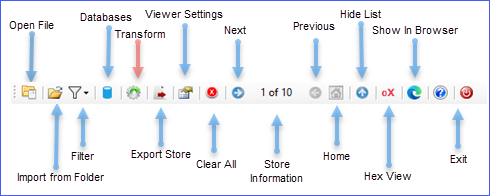
Transforming HL7 Messages
Main Window Toolbar
When you have 1 or more HL7 messages open in your Message Store in the Main Window just click the Transform button on the main window toolbar (or in the Tools Menu). This will open up the Transformation Scripts Window.
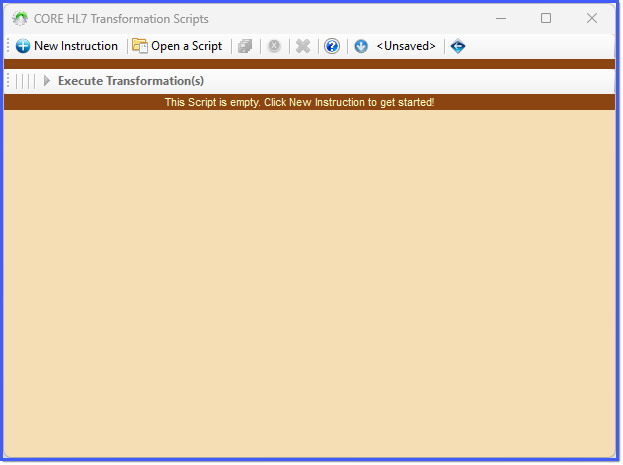
Transformation Scripts Window (Empty)
You Transform HL7 messages using Transformation Scripts which you will create in this window. When you enter this window it will automatically reopen the last script that you were using. In the screenshot above the script is empty. You create Transformation Instructions by clicking the  New Instruction button on the toolbar, OR you can click the
  Open Script button to open a Transformation Script file. The program comes with an example script file named AnonymizerExample.xForm (Transformation Script files have a .xForm extension), see below for a "Loaded" transformation script.

Transformation Scripts Window (Example Script)
IF you have a HL7 message selected in the Main Window you can use the  Up and
  Down arrow buttons on the toolbar to Show/Hide the message. This is handy if you need a quick reference before creating or editing a Transformation Instruction.

Transformation Scripts Window (Example Script)
To Edit a Transformation Instruction in your script click the Edit button on the same line as the instruction, likewise, to Delete an instruction click the Delete button.
To Save your instruction script click the  Save button on the toolbar.
To RUN your Transformation Script click the Execute Transformation(s) button (which will not be visible if it CANNOT be run). Watch the YouTube video in Creating Unlimited HL7 Test Data below for a demonstration of what that looks like.
Your Next Step: See Creating Transformation Instructions.
