CORE HL7 Transformation Macros
Version 2.5
Macro: Blank()
Parameters: 0
Instructions: Clears the component value
Macro: DateStamp()
Parameters: 0
Instructions: Replaces the value with the current system date (yyyymmdd)
Macro: DateTimeStamp1()
Parameters: 0
Instructions: Replaces the value with the current system date and time to the minute (yyyymmddhhmm)
Macro: DateTimeStamp2()
Parameters: 0
Instructions: Replaces the value with the current system date and time to the second (yyyymmddhhmmss)
Macro: DefaultValue(value)
Parameters: 1
Parameter #1: value [String]
Instructions: Replaces the component value with the value passed in parameter 1 [value] ONLY if the selected component value is empty
Macro: GUID()
Parameters: 0
Instructions: Replaces the component value with a system Globally Unique Identifier (guid)
Macro: HL7Null()
Parameters: 0
Instructions: Replaces the component value with an HL7 explicit NULL ("").
Macro: MessageControlID()
Parameters: 0
Instructions: Replaces the component value with a HL7 Compliant value for MSH 10.1
Macro: PadLeft(numberOfCharacters, padCharacter)
Parameters: 2
Parameter #1: numberOfCharacters [Number]
Parameter #2: padCharacter [String]
Instructions: Increases the length of the component value to [numberOfCharacters] characters in length by padding to the left with [padCharacter]. If padCharacter is omitted spaces are used. If the original value is equal to or longer than [numberOfCharacters] characters in length it will be left unchanged.
Macro: PadRight(numberOfCharacters, padCharacter)
Parameters: 2
Parameter #1: numberOfCharacters [Number]
Parameter #2: padCharacter [String]
Instructions: Increases the length of the component value to [numberOfCharacters] characters in length by padding to the right with [padCharacter]. If padCharacter is omitted spaces are used. If the original value is equal to or longer than [numberOfCharacters] characters in length it will be left unchanged.
Macro: Prefix(strPrefix)
Parameters: 1
Parameter #1: strPrefix [String]
Instructions: Adds the value passed in parameter 1 [strPrefix] to the beginning of the component value
Macro: RandomAge(intMinimumYears, intMaximumYears)
Parameters: 2
Parameter #1: intMinimumYears [Number]
Parameter #2: intMaximumYears [Number]
Instructions: Replaces the value with a random date from the past which (if evaluated as a date of birth) would result in the person's age being between [intMinimumYears] to [intMaximumYears] old (formatted yyyymmdd)
Macro: RandomCityName()
Parameters: 0
Instructions: Replaces the value with a random city name from an internal database of over 1000 city names
Macro: RandomFemaleFirstName()
Parameters: 0
Instructions: Replaces the component value with a random female gendered first name selected from an internal list
Macro: RandomFirstName()
Parameters: 0
Instructions: Replaces the component value with a random first name (male or female) selected from an internal list
Macro: RandomLastName()
Parameters: 0
Instructions: Replaces the component value with a random surname selected from an internal list
Macro: RandomMaleFirstName()
Parameters: 0
Instructions: Replaces the component value with a random male gendered first name selected from an internal list
Macro: RandomNumber(value)
Parameters: 1
Parameter #1: value [Number]
Instructions: Replaces the component value with a random number <value> digits long
Macro: RandomPastDate(intNumberOfYears)
Parameters: 1
Parameter #1: intNumberOfYears [Number]
Instructions: Replaces the value with a random date from the past with a maximum of [intNumberOfYears] old
Macro: RandomPastDateTime(intMinimumDays, intMaximumDays)
Parameters: 2
Parameter #1: intMinimumDays [Number]
Parameter #2: intMaximumDays [Number]
Instructions: Replaces the value with a random datetime from the range [intMinimumDays] to [intMaximumDays] in the past formatted yyyymmddhhmm
Macro: RandomSelection(CommaDelimitedList)
Parameters: 1
Parameter #1: CommaDelimitedList [String]
Instructions: Replaces the component value with a random selection from the item list in parameter 1 [CommaDelimitedList] which must be a comma delimited list of items (Example: Lab1, Lab2, Lab3).
Macro: RandomSSN()
Parameters: 0
Instructions: Replaces the value with a randomly generated 9 digit number formatted as USA social security number 'nnn-nn-nnnn'
Macro: RandomState()
Parameters: 0
Instructions: Replaces the value with a random U.S. State abbreviation.
Macro: RandomStreetAddress()
Parameters: 0
Instructions: Replaces the value with a random 4 digit street number and a random street name from an internal database with over 2000 unique street names.
Macro: RandomString(value)
Parameters: 1
Parameter #1: value [Number]
Instructions: Replaces the component value with a random character string <value> characters long
Macro: RandomTelephone()
Parameters: 0
Instructions: Replaces the value with a randomly generated 10 digit number formatted as USA telephone number '(nnn) nn-nnnn'
Coming Soon! - This macro is not available in this version.
Macro: RandomValueSet(value)
Parameters: 1
Parameter #1: value [ValueSet]
Instructions: Replaces multiple segment values with a random selection from a list of ValueSets passed in parameter 1 [value]
Macro: Scrub(strScrubValue)
Parameters: 1
Parameter #1: strScrubValue [String]
Instructions: Removes ALL instances of the value passed in parameter 1 [strScrubValue] from the component data. NOTE: Parameter 1 is NOT case-sensitive. Example: If parameter 1 is ABC then the component value ABCDEF would be changed to DEF, component value AbCdEf would be changed to dEf.
Macro: StaticValue(value)
Parameters: 1
Parameter #1: value [String]
Instructions: Replaces the component value with the value passed in parameter 1 [value]
Coming Soon! - This macro is not available in this version.
Macro: StaticValueSet(value)
Parameters: 1
Parameter #1: value [ValueSet]
Instructions: Replaces multiple segment values with a single static ValueSet passed in parameter 1 [value]
Macro: SubString(intStartingPosition, intNumberOfCharacters)
Parameters: 2
Parameter #1: intStartingPosition [Number]
Parameter #2: intNumberOfCharacters [Number]
Instructions: Replaces the component value with a substring beginning at position [intStartingPosition] and extending to position [intNumberOfCharacters]. If the optional second parameter [intNumberOfCharacters] is omitted then the entire value from position [intStartingPosition] is returned.
Macro: Suffix(strSuffix)
Parameters: 1
Parameter #1: strSuffix [String]
Instructions: Adds the value passed in parameter 1 [strSuffix] to the end of the component value
|

 button.
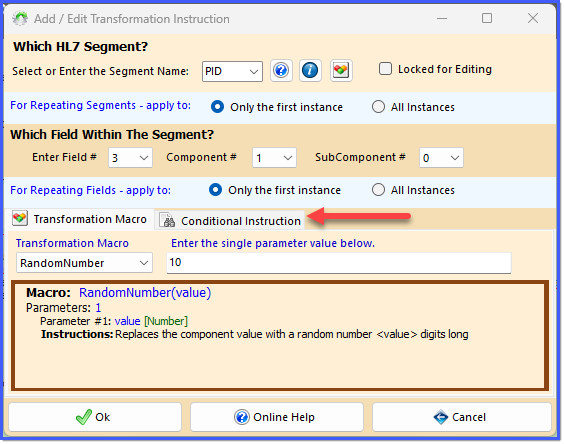
 Conditional Instruction tab.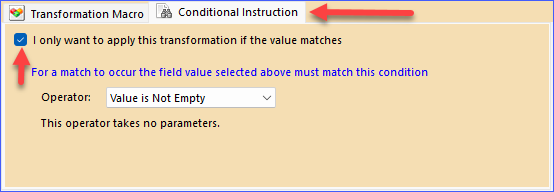




 Ok button (which will NOT be enabled unless you make a change) to return to the Transformation Scripts window.