Here are some examples of CORE HL7 C# code which implements best practices.

 Edit CORE HL7 Scripts in Visual Studio
As shown in the video you will need to download the CORE HL7 Script Sandbox dll (zip file).
|
Handling Loops and Being System Aware
CORE HL7 C# Scripts are VERY powerful, and it IS possible for you to write a script which causes your application to lock up, uses up the system CPU and memory resources, etc. Lets look at the first and worst cause of problems like this, and that is loops.
Bad Example
In this code snippet example of a Type 2 Script you can see that the code goes into a perpetual while() loop and wakes up every 10 seconds to do something. What it does is not important. What IS important is that this code is missing 2 things and will behave badly.
#1. As written, this while() loop will process millions and millions of times every 10 seconds. This will spike your system CPU. #2. There is no querying of the Script Hosting Application (See Architecture) to see if it needs to STOP working.
public void Execute(COREHL7Script parent) { try { /* Your Executable code goes in here below this line */ globals = parent; globals.TraceLog("Hello from the script I am Running!"); DateTime nextHeartBeat = DateTime.Now.AddSeconds(10); while (true) { if (DateTime.Now > nextHeartBeat) { globals.TraceLog("I am still running and will trace/Log every 10 seconds."); //..Code.. //..Code.. //..Code.. //..Code.. nextHeartBeat = DateTime.Now.AddSeconds(10); } } //..Code.. //..Code.. Bad Example (Fixed)
We will make just 2 tiny changes to the code above and now this script is ready to go!
while (true) { if (DateTime.Now > nextHeartBeat) { globals.TraceLog("I am still running and will trace/Log every 10 seconds."); //..Code.. //..Code.. //..Code.. //..Code.. nextHeartBeat = DateTime.Now.AddSeconds(10); } //Ask the Hosting Application if I need to STOP if (globals.StopAllProcessing) { break; } //Be friendly and stop your thread for just 10 milliseconds and yield to others }
By using Sleep() and StopAllProcessing you can create long running C# scripts that are system friendly!
|
The using Directives
Whenever you create a C# script you can see the using directives which we have made part of the default script.
using System;
using COREHL7;
using COREHL7ScriptHost;
/* ABOVE are the using statements which are required */
using System.Collections.Generic;
using System.Linq;
using System.IO;
using System.Xml;
using System.Data;
using System.Data.SqlClient;
using System.Text;
/* ABOVE are the optional using statements you can include */
These directives are the ones that we KNOW will be available to you when you create your C# scripts. This means that you can create a script on a Windows 10 machine, then export it out to the latest Microsoft Windows server machine and the script WILL compile and work.
 Can I use OTHER directives? Good question. The answer is maybe, it depends on the directive. If it is for some package that you have to retrieve from NuGet then your script MAY work on your machine, but there is no guarantee that your script will be portable to other computers. The Script Engine is a .Net Framework (4.6.2) application. That being said below is a script example which we recently did for a customer and it DOES work (at least on our machines here in the lab and the customer servers).
This script will attempt to connect to a network share which is on a different computer on another domain.
using System; using COREHL7; using COREHL7ScriptHost; using System.Collections.Generic; using System.Linq; using System.IO; using System.Xml; using System.Data; using System.Data.SqlClient; using System.Text; //A different using directive. using System.Runtime.InteropServices;
// Network Connection Variables REQUIRED public static string networkPath = @"\\ShareFolder.OtherSystem.net\pdf_in\COREHL7\TEST"; public static string username = @"OtherDomain\CoreHL7User"; public static string password = "aKlbByu1!"; public static COREHL7Script globals;
public class Script { //This Script class is your MAIN class. It MUST be present to run
public void Execute(COREHL7Script parent) { //This Execute method in your Script class is your MAIN method. It MUST be present to run! globals = parent; try { /* Your Executable code goes in here below this line */ globals.TraceLog("Hello from the script I am Running!"); if (!NetworkConnection.ConnectToNetworkDrive(networkPath, username, password)) { //I am done and cannot get to the share //When it failed it automatically set the exception //so it has already been Traced and Logged. //All I have to do is get out and rely on the //Hosting application to restart me later globals.Completed = false; return; } //SUCCESS! I am connected to the network share and //can read files or copy / move files to that share
//..Code.. //..Code.. //..Code.. //..Code.. globals.Completed = true; return;
/* Your Executable code goes in here above this line */ } catch (Exception ex) { //This SetException method is your global method to handle exceptions globals.SetException("System Error: " + ex.Message, "RunScript()", 10201); globals.Completed = false; return; } } } //End of Script Class public class NetworkConnection { [StructLayout(LayoutKind.Sequential)] public struct NETRESOURCE { public int dwScope; public int dwType; public int dwDisplayType; public int dwUsage; public string lpLocalName; public string lpRemoteName; public string lpComment; public string lpProvider; }
[DllImport("mpr.dll")] public static extern int WNetUseConnection(IntPtr hwndOwner, [MarshalAs(UnmanagedType.Struct)] ref NETRESOURCE lpNetResource, string lpPassword, string lpUserID, int dwFlags, string lpAccessName, string lpBufferSize, string lpResult);
public static bool ConnectToNetworkDrive(string networkPath, string username, string password) { try { NETRESOURCE netResource = new NETRESOURCE { dwType = 1, // Disk resource lpRemoteName = networkPath };
int result = WNetUseConnection(IntPtr.Zero, ref netResource, password, username, 0, null, null, null); if (result != 0) { globals.SetException("Failed to connect to network drive.", "ConnectToNetworkDrive()", 32110); return false; } if (!Directory.Exists(networkPath)) { globals.SetException("Network path not found.", "ConnectToNetworkDrive()", 32111); return false; } return true;
} catch (Exception ex) { globals.SetException("System Error in ConnectToNetworkDrive(): " + ex.Message, "Script()", 11238); return false;
} } } /* This line below MUST be the LAST line in your script */ return new Script();
|
globals.Completed
How you use the globals.Completed value in your scripts is VERY important, especially if you are running a Type 1 script in the CORE HL7 Script Engine software.
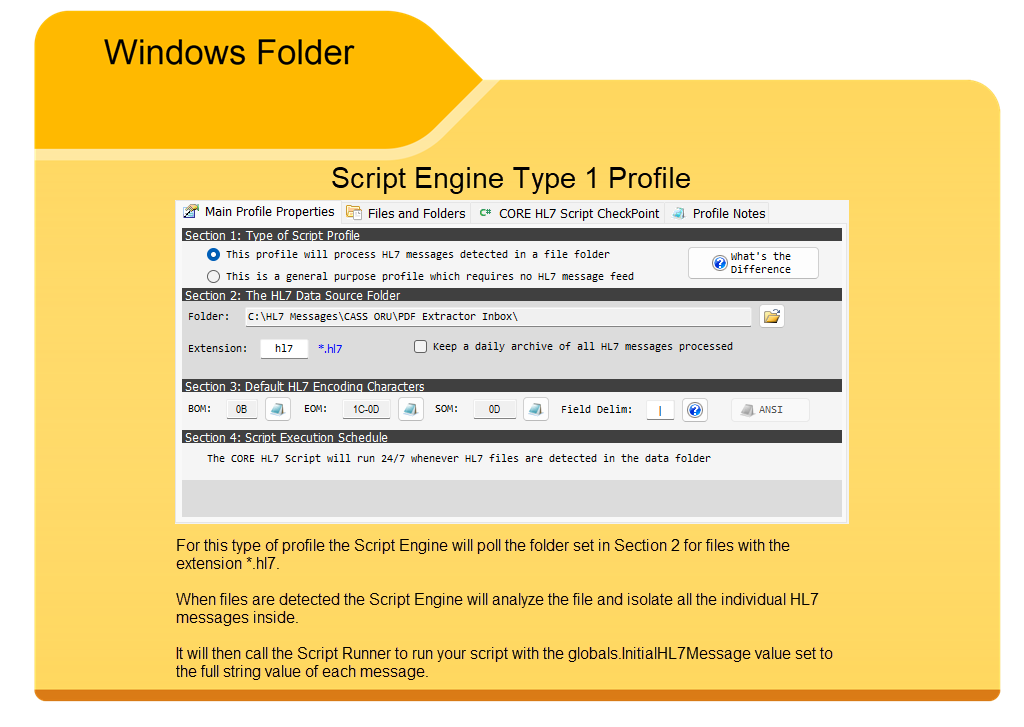 Now a code snippet below of how you work with the message (A full example script in Example #4)
public void Execute(COREHL7Script parent) { //This Execute method in your Script class is your MAIN method. It MUST be present to run! globals = parent; try { /* Your Executable code goes in here below this line */ globals.TraceLog("Hello from the script I am Running!"); if (string.IsNullOrEmpty(globals.InitialHL7Message)) { globals.SetException("No action required.No initial message", "Script()", 321342); globals.Completed = true; return; } MyMessage = globals.CreateInitialMessage(); if (globals.HasException) { //I tried to create the message object but an error //occurred. Call move to error and exit globals.MoveInitialMessageToError(); globals.Completed = true; return; } //Now MyMessage is a valid CHS_Message object //...Code... //...Code... //...Code... //I have finished my task with the message //Tell the Script Hosting Application that I //am done. This will cause the message file to be consumed globals.Completed = true; return;
By setting globals.Completed to true your script tells the Script Engine software that you have completed your task to the point where there is nothing more to be done. This means that the Script Engine software will CONSUME (IE Delete) the source HL7 data file. If your script were to set the globals.Completed to false, this tells the Script Engine software that something went wrong. It will NOT consume the data file, it will back out, reset itself, wait 30 seconds and then run your script again passing the same HL7 message into it.
catch (Exception ex) { //This SetException method is your global method to handle exceptions globals.SetException("System Error: " + ex.Message, "RunScript()", 10201); globals.Completed = false; return; } In the catch {} we think you should set globals.Completed to false. The exception occurred because of an unhandled error in your script. You wouldn't want the Script Engine to just delete the source HL7 data file and move on to the next, so you set it to false, forcing the script engine to just keep trying to process the same message over and over.
Consider in the code snippet above, what to do if we cannot create the CHS_Message object from the value passed in by the script hosting application?
MyMessage = globals.CreateInitialMessage(); if (globals.HasException) { //I tried to create the message object but an error //occurred. Call move to error and exit globals.MoveInitialMessageToError(); globals.Completed = true; return; }
This should never happen BUT we still check and call the globals.MoveInitialMessageToError() method, which writes the initial message to the Errors folder, and then set globals.Completed to true and return. The Script Engine software then deletes the original file.
The rule of thumb you should use in your code is to ask: Is there any chance that whatever error I'm encountering will resolve itself in the future? Examples:
•My script tries to connect to a Microsoft SQL database and cannot connect. This might resolve itself, so set globals.Completed to false and return. •The Output folder in my script is invalid so I can't write data out. This might resolve itself if, for instance the Output folder is set to a network share, so set to false and return. •My script is designed to process ADT HL7 messages and MyMessage is actually a SIU message. Here you have a choice, and it's your script so you know the answer. You NEED to set globals.Completed to true because the situation will NOT resolve itself given more time (the message will always be a SIU message). Your choice is simply do I need to move the message out of the way and keep it? Or do I just set globals.Completed to true and return and let the Script Engine software just delete the message. If you want to keep the message, move it to the Errors folder as in the example below. if (MyMessage.MessageType != "ADT") { string msg = "Message " + MyMessage.MessageControlID + " is type: " + MyMessage.MessageType; globals.TraceLog(msg); globals.MoveInitialMessageToError(); globals.Completed = true; return; }
|

Under Construction Check Back Soon
