NOTE: You will notice that you cannot a profile locally if it is currently running in one of your Windows Services.
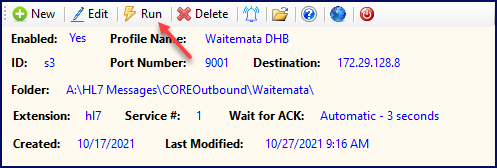
Running your profiles locally means to run them in a window so that you can watch them run and see real time results in the grid on the top half of the screen and the trace window area on the bottom half. Once the Run Locally Window is loaded click Start to get things going and when you are ready click Stop to halt. Click to close the Run Locally Window and return to the Main Window.
IF you have more than 1 enabled profile not currently running in a service the first thing you will notice when you click Run is that a pop-up window will ask you to select which profiles you want to run. IF you have more than 5 enabled profiles you will also notice that this pop-up windows will not let you select more than 5. This is because the Run option is limited to a maximum of 5 profiles simultaneously processing.
Run Locally Window
Important: Running Locally should always be your first step if you suspect that something is wrong and you need to troubleshoot.
Example using the screenshot above: I have been monitoring my system and I receive a message from my Trading Partner that they cannot connect to my HL7 Listener. All that I have to do is log in to the server, STOP the windows service(s) (from the toolbar in the Main Window) and click Run Locally , then click Start to get things going.
It is very important to remember that running a profile locally is NOT the same as running a profile in a Windows Service. The most common support contact we have EVER had is because people don't understand this issue.
When you run locally the program is executing as YOU (the Windows User) and (unless YOU changed it) the Windows Service is NOT. By default the Windows Service will run as the built-in Windows account LocalSystem.
This means that IF:
1.If any of your data folders in your profiles (see Creating Profiles) point to network shares or NAS (Network Attached Storage) drives.
2.OR your MS Windows Service(s) do not have the proper user rights to read/write/create/delete files in the installation folder
It is possible that YOU (your Windows User ID) can "see" those resources BUT the Windows Service Logon CANNOT. If you experience a problem where it WORKS fine when running locally but does NOT when running as a service this is most likely the problem. Correct by changing your windows service(s) and have it use a Windows / Domain user id as the Logon rather than LocalSystem.
The easiest way to test this is to first configure the Windows Service to run as YOU (the User ID you used when logging into the server). Then run the service. If it works NOW, and it did NOT when running as LocalSystem then you have identified the problem as a User Rights issue. Typically you do not want to leave your Windows Service(s) running as YOU. This would mean that if YOU changed your login password on your account your Windows Service(s) would stop working. The most common solution is to create a new Windows Logon which has the proper rights and is dedicated solely to running your Windows Service(s).

 Start to get things going and when you are ready click
  Stop to halt. Click
  to close the Run Locally Window and return to the Main Window.
 Important: Running Locally should always be your first step if you suspect that something is wrong and you need to troubleshoot.

